
LDFM Installation Guide
1. Introduction
Lenovo Display Fleet Manager (LDFM) is an enterprise solution designed to remotely manage Lenovo monitors. It enables administrators to configure the on-screen display (OSD) settings, perform remote firmware upgrades, and control monitor devices centrally.
The system consists of two core components:
- LDFM Server: A service deployed within a local network for centralized management.
- LDFM Client: A client-side service that connects monitors and communicates with the server.
Both components must be in the same local network.
1.1 Overall Workflow
The recommended deployment workflow is as follows:
- Install and configure the LDFM Server.
- Configure the HTTPS certificate for secure communication.
- Generate and distribute the client configuration files.
- Install the LDFM Client on endpoint devices.
- Verify connectivity and service status.
- Log in to the LDFM management portal.
1.2 Terminology and Definitions
The following table defines key terms used throughout this guide. These definitions are referenced in subsequent sections to ensure consistency.
| Term | Definition |
|---|---|
| LDFM Server | A central service deployed within a local network, responsible for managing devices and providing management functionalities. |
| LDFM Client | A client-side service installed on endpoint devices that manages connected monitors and communicates with the LDFM Server. |
| LDFM-nginx-server | A web server component used by LDFM Server to handle HTTP/HTTPS requests. |
| LDFM-redis-server | A caching service used internally by LDFM Server. |
| LDFM-server | A core backend service of LDFM that processes business logic. |
| LDFM-ca-signing-service | A local service used by LDFM backend to issue and renew device client certificates. |
| LDFMConfig.ini | A configuration file containing server address, port, and certificate-related information used by the client. |
| LDFMConfig.mobileconfig | A configuration profile used for macOS clients, containing server connection settings. |
| HTTPS Certificate | A digital certificate used to establish secure HTTPS communication between the LDFM Server and LDFM Clients. |
| server.crt & server.key | Certificate files required by the LDFM Server for HTTPS configuration. |
| LDFMServerSetup.exe | The installation package which is used to deploy the LDFM Server on Windows systems. |
| LDFMClientSetup.msi | The installation package for the LDFM Client on Windows systems. |
| LDFMClientSetup.pkg | The installation package used to deploy the LDFM Client on macOS systems. |
| LDFM-Root-CA-Backup | The offline backup directory for the Root CA certificate and
private key.
WARNING: Loss or
compromise of |
2. Prerequisites
2.1 Hardware Requirements
LDFM Server:
- CPU: At least 4 CPU cores
- Memory: 16 GB or more
- Storage: Minimum 4 GB of free disk space
- OS: Windows 10/11 Pro, Windows Server (64-bit), or Linux (x86-64)
LDFM Client:
- OS: Windows 10, Windows 11 Home Edition or later (32-bit or 64-bit), or macOS Sonoma 14.6.1 or later
Monitor Connection:
- The monitor should be connected to the client machine via USB-C, or USB A-B + HDMI/DP.
2.2 Network Requirements
- The LDFM Server and Clients must be on the same local network.
- The client must be able to access the server via HTTPS (default port: 443).
2.3 Certificate Preparation
- Prepare a valid HTTPS certificate.
- Rename files as:
- server.crt
- server.key
Keep server.key secure, do not distribute the private key to client devices or unauthorized users.
For certificate format conversion, refer to 5. HTTPS Certificate Format Convert.
2.4 Installation Files
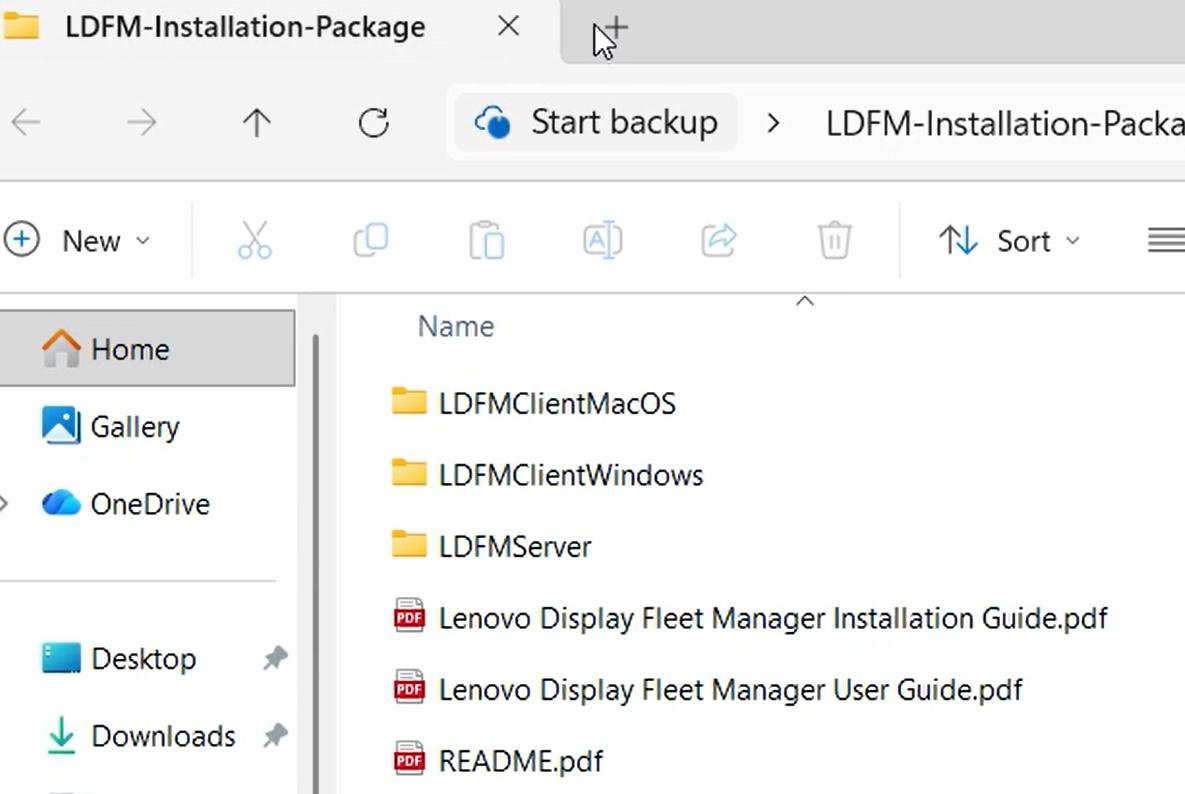
Extract LDFM-Installation-Package.zip before installation.
The extracted package should contain the contents shown in the figure.
3. LDFM Server Installation
3.1 Install the LDFM Server
- Run
LDFMServerSetup.exewith administrator privileges. - Follow the installation wizard until the Server Configuration page appears.
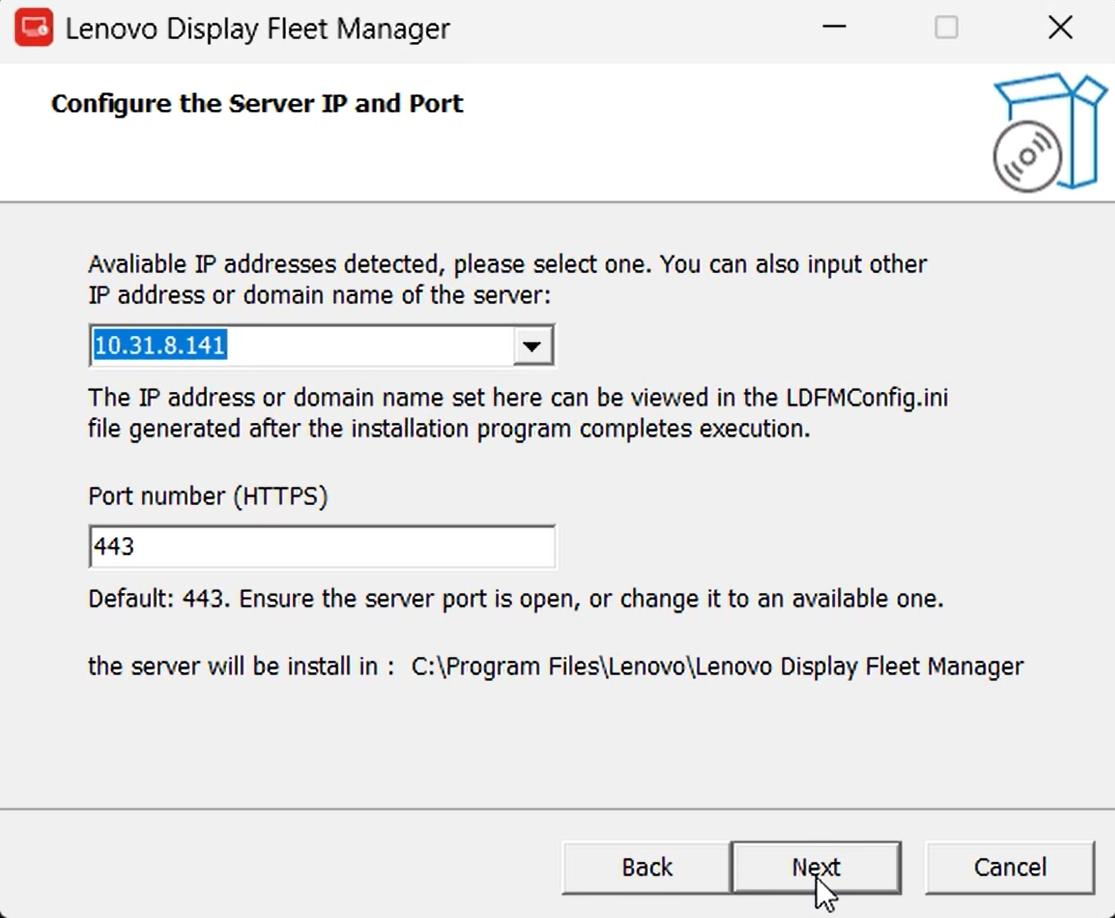
3.2 Configure Server Address
Specify the server address that LDFM Clients will use to connect.
You can enter either:
- An IP address
- A fully qualified domain name
The default HTTPS port is 443.
3.3 Set HTTPS Certificate
Select the HTTPS certificate files:
server.crtserver.key
Ensure that:
- The certificate and private key belong to the same certificate pair.
- The certificate matches the configured server address.
- The files are in PEM-compatible CRT/KEY format.
For certificate format conversion, refer to 5. HTTPS Certificate Format Convert.
3.4 Select Root CA Offline Backup Directory
Select a secure offline directory for the Root CA backup.
The Root CA backup contains the Root CA private key (root-ca.key).
This key is used to establish trust for all device certificates issued by LDFM.
Store the backup in a secure offline location. Do NOT:
- Upload it to shared storage
- Distribute it to client devices
- Modify its content
Loss or compromise of this key may require reissuing all client certificates.
3.5 Set Storage Path
Select the storage path for firmware packages.
Default location:
C:\ProgramData\Lenovo\Lenovo Display Fleet Manager
Ensure that sufficient disk space is available for future firmware uploads.
3.6 Complete Installation
- Click Install to begin installation.
- Click Finish when the installation completes.
- Wait for all LDFM services to initialize.
The initialization process may take several minutes depending on system performance.
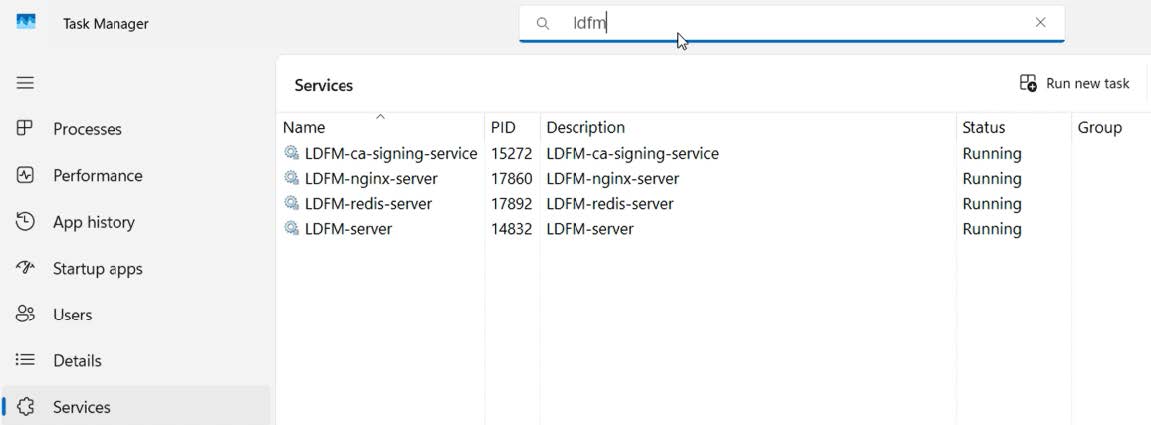
3.7 Verify Server Service
Open the Task Manager, ensure the following services are running:
- LDFM-server
- LDFM-redis-server
- LDFM-nginx-server
- LDFM-ca-signing-service
3.8 Configuration File
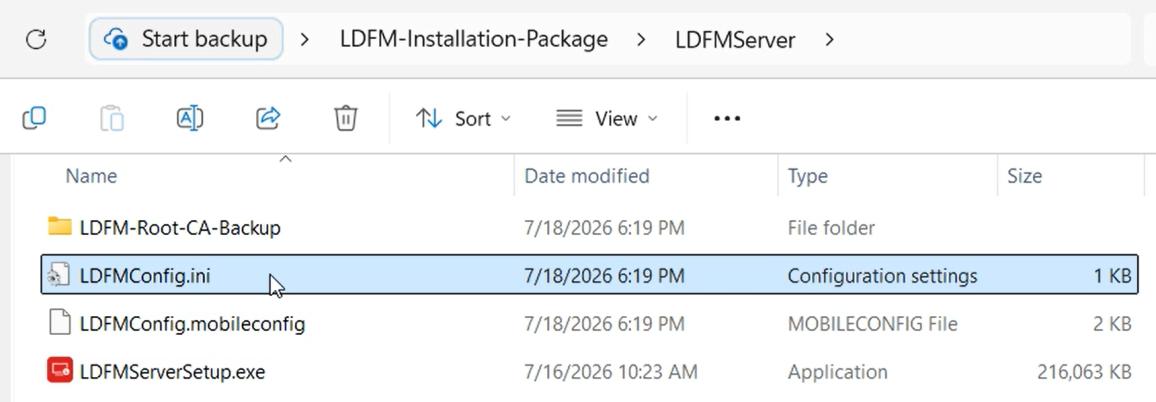
After installation, the following files and directories are generated automatically:
LDFMConfig.ini, used to configure and deploy Windows-based LDFM Clients.LDFMConfig.mobileconfig, used to configure and deploy macOS-based LDFM Clients.LDFM-Root-CA-Backup, used for Root CA backup which must be stored securely offline and must not be distributed to Clients. This directory should be backed up securely and retained for disaster recovery purposes.
3.9 Access the System
3.9.1 Enter the Website Address
Open a browser and access:
https://<Server IP>:<Port>
3.9.2 Login
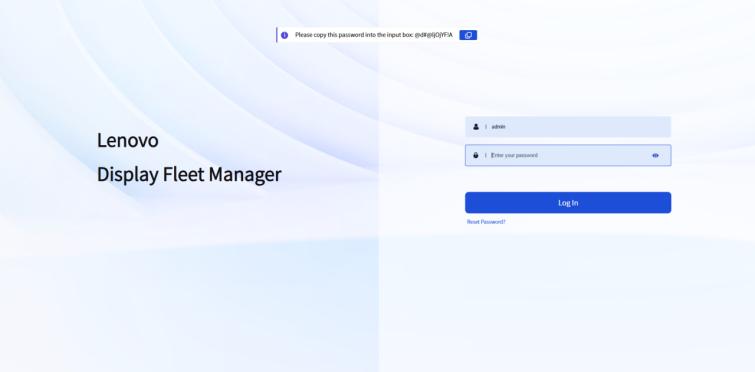
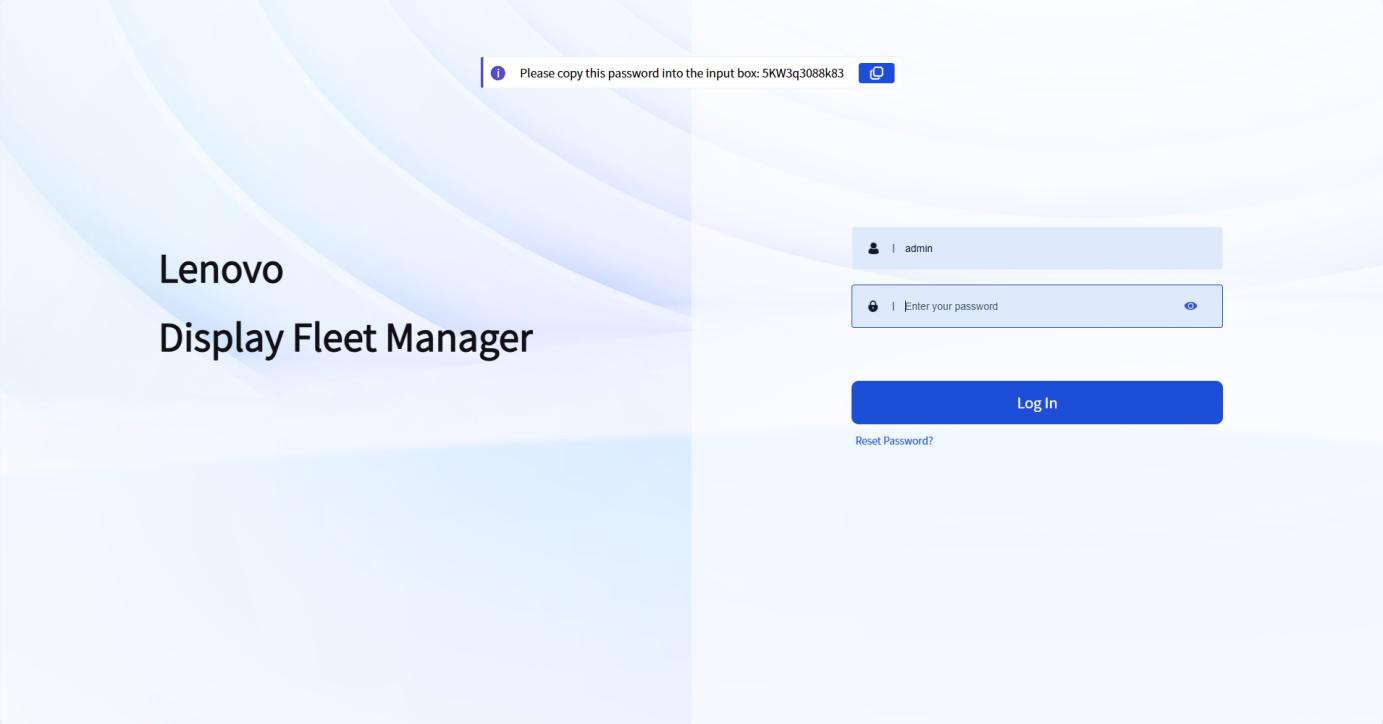
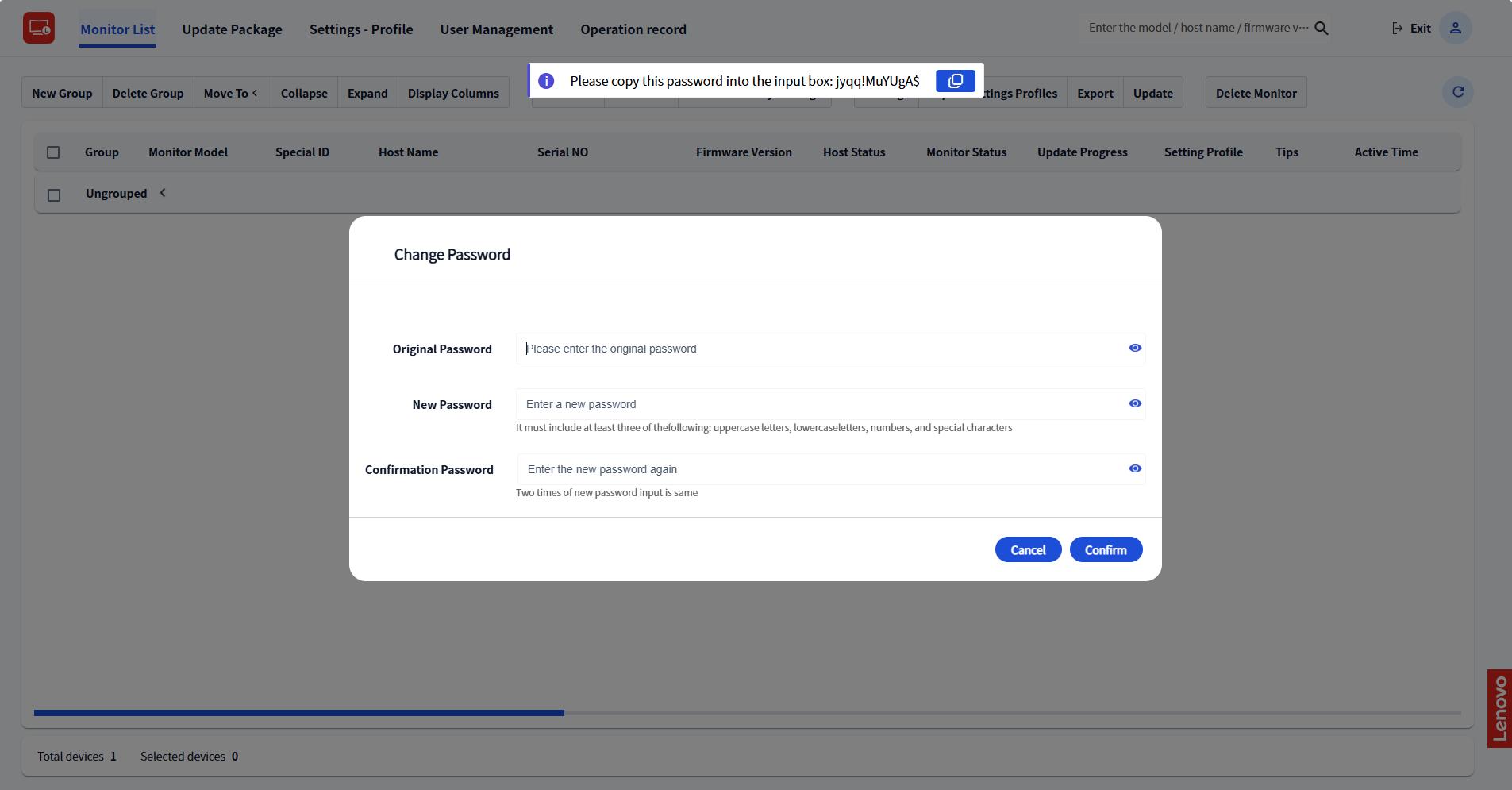
For the first login, enter the "admin" account. Then click on the password input area. The initial password will be displayed automatically. After the first successful login, LDFM Server will require you to change your password.
For details, see the Lenovo Display Fleet Manager User Guide.
3.10 Uninstallation of LDFM Server
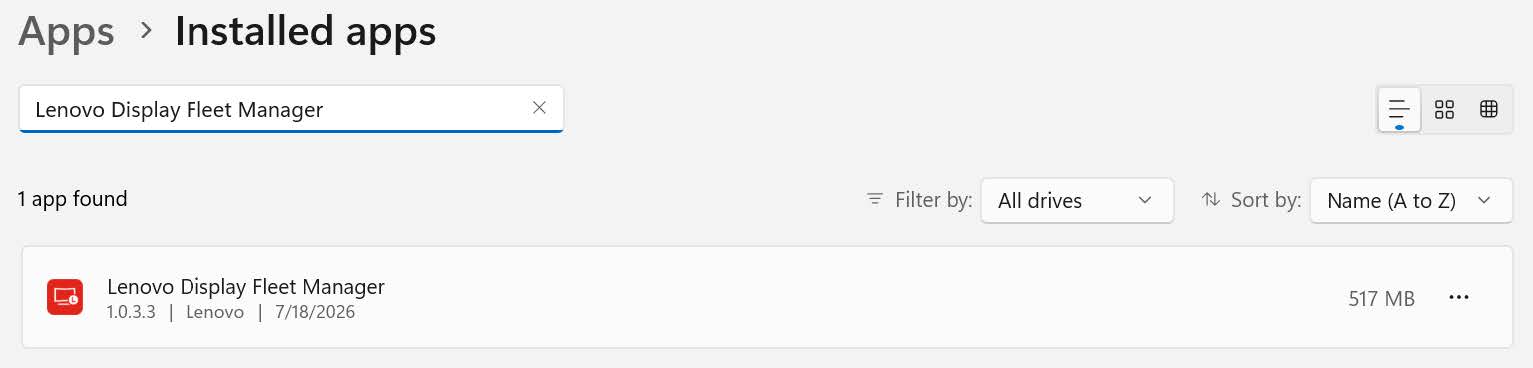
- Navigate to Settings > Apps > Installed apps.
- Locate the Lenovo Display Fleet Manager, then uninstall it.
4. LDFM Client Installation
This section describes how to install the LDFM Client on a local machine.
If you are deploying the LDFM Client using SCCM or Intune, please refer to 6. Large-scale Deployment.
4.1 Preparation
4.1.1 Windows
Copy the LDFMConfig.ini file generated during LDFM Server
installation into the same directory as LDFMClientSetup.msi.
The installer automatically reads this file and uses it to configure the connection to the LDFM Server.
4.1.2 MacOS
Copy the LDFMConfig.mobileconfig file generated during LDFM server
installation into the same directory as LDFMClientSetup.pkg.
This profile contains the server connection settings required by the LDFM Client.
4.2 Install Client
4.2.1 Windows
- Run
LDFMClientSetup.msiwith administrator privileges. - Follow the installation wizard.
- Complete the installation.
4.2.2 MacOS
- Run
LDFMClientSetup.pkg. - Follow the installation wizard.
- Open
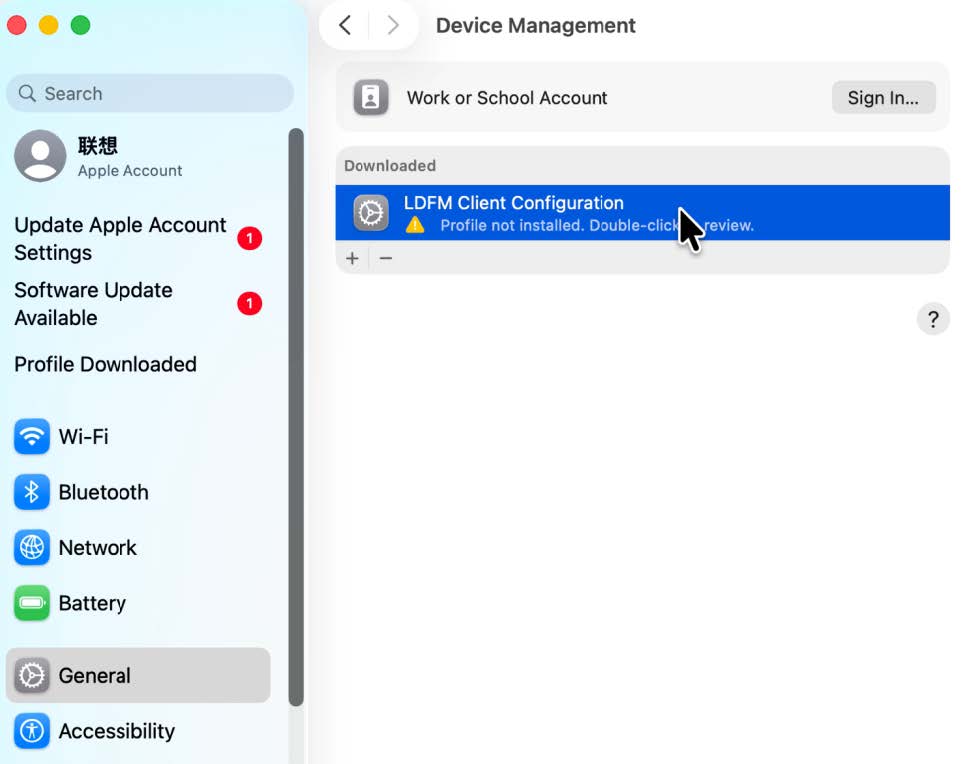
LDFMConfig.mobileconfig. - Navigate to:
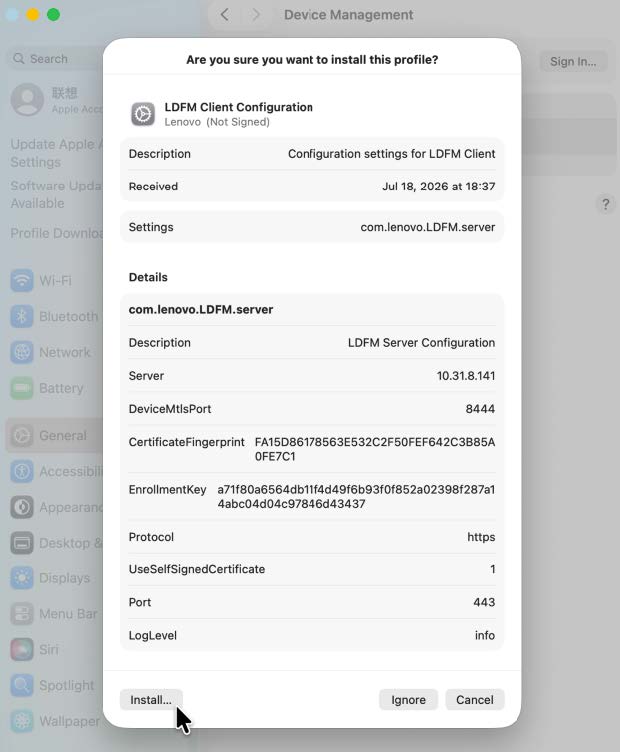
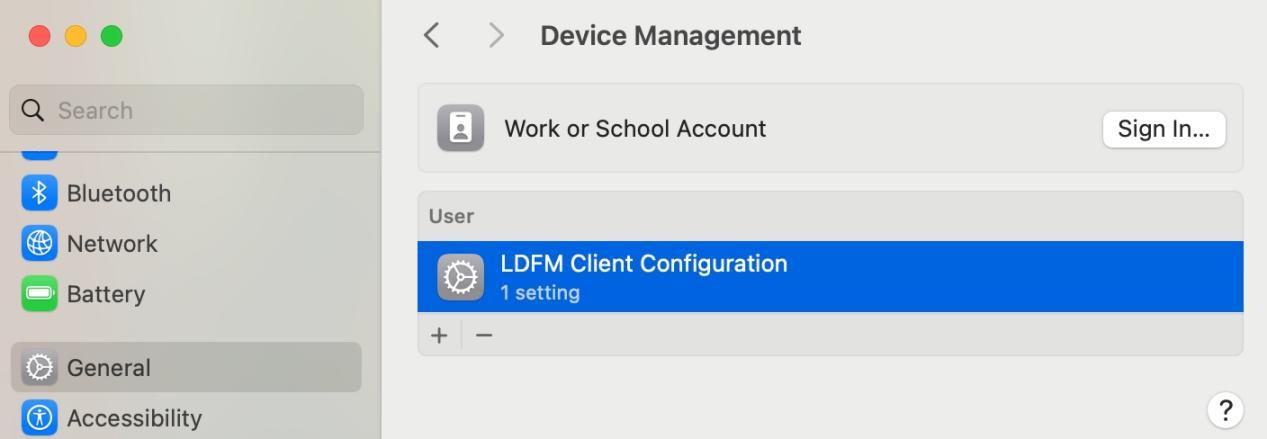
System Settings > General > Device Management. - Select LDFM Client Configuration and click Install.
4.2.3 Verify Client Service
4.2.4 Windows
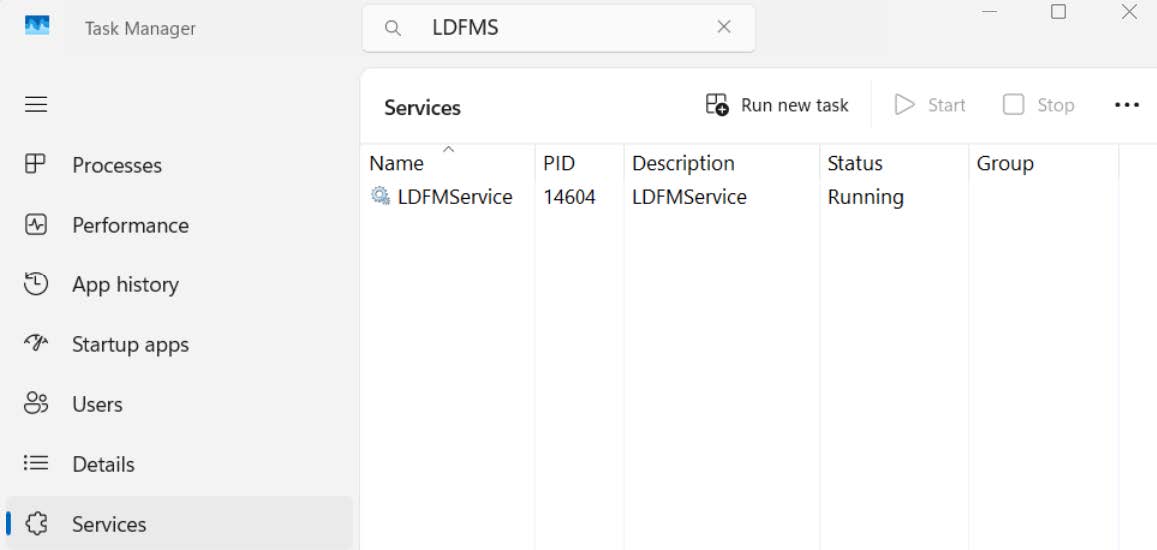
Navigate to Task Manager > Services.
Verify that the LDFMService status is Running.
4.2.5 MacOS
Open Activity Monitor.
Verify that the LDFMClient process is running in Activity Monitor.
4.3 Uninstallation of LDFM Client
4.3.1 Windows
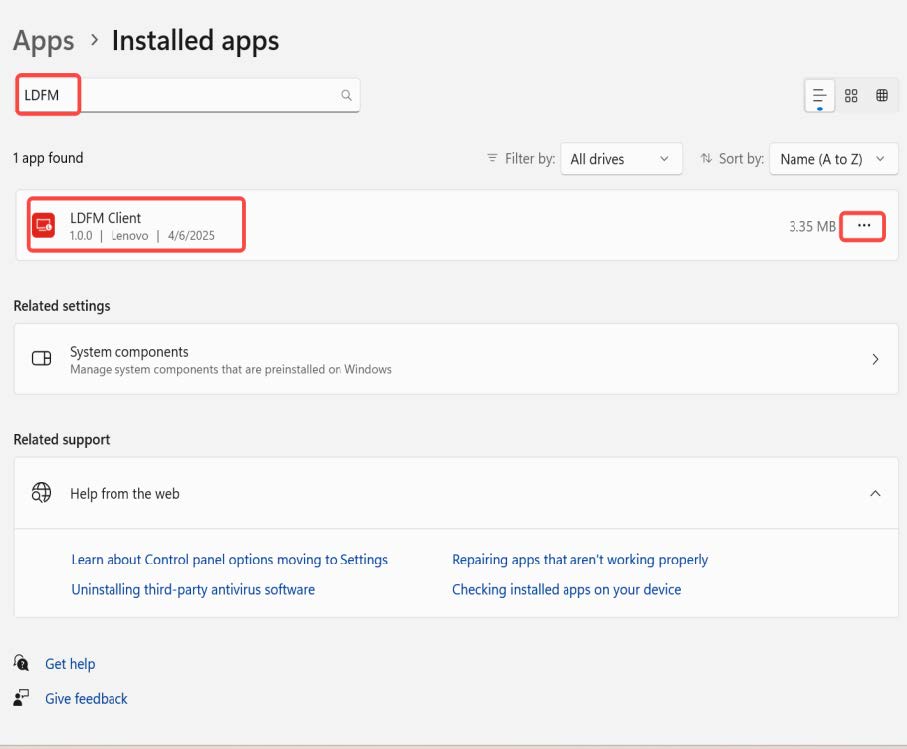
Navigate to Settings > Apps > Installed apps.
Locate the LDFM Client, click on "..." and then click "Uninstall".
4.3.2 MacOS
Open the terminal and type the following command:
sudo LDFMClient_uninstall.shInput your password to complete the uninstallation.
5. HTTPS Certificate Format Convert
LDFM Server requires certificate files in CRT/KEY format. If your certificate is provided in PFX or P12 format, convert it before installation.
The following procedure demonstrates how to convert a PFX/P12 certificate into a CRT/KEY certificate pair using OpenSSL.
5.1 Convert Certificates to CRT/KEY Format
The following procedure applies to Windows systems (PowerShell 5.1 and later) and is used to convert PFX/P12 files to the standard CRT/KEY PEM format. Before proceeding, please ensure that OpenSSL (Windows version) is installed.
-
Open PowerShell (as an administrator) and navigate to the directory where the certificates are located (example path:
C:\cert):cd C:\cert -
Extract the private key:
openssl pkcs12 -in source.pfx -nocerts -out target_key.key -nodes -
Extract certificate:
openssl pkcs12 -in source.pfx -nokeys -out target_certificate.crt -
Verify certificate pair:
openssl x509 -noout -modulus -in target_certificate.crt | openssl md5 openssl rsa -noout -modulus -in target_key.key | openssl md5 -
Verify the generated files:
# Verify the KEY file
openssl rsa -in target_key.key -check

# Verify the CRT file
openssl x509 -in target_certificate.crt -text -noout
6. Large-scale Deployment
This section describes how to deploy LDFM Client to multiple devices using Microsoft SCCM or Microsoft Intune.
Before proceeding, ensure that:
- LDFM Server has been installed and configured.
- The client configuration file is available.
6.1 Deployment via SCCM (Windows)
6.1.1 Package Deployment
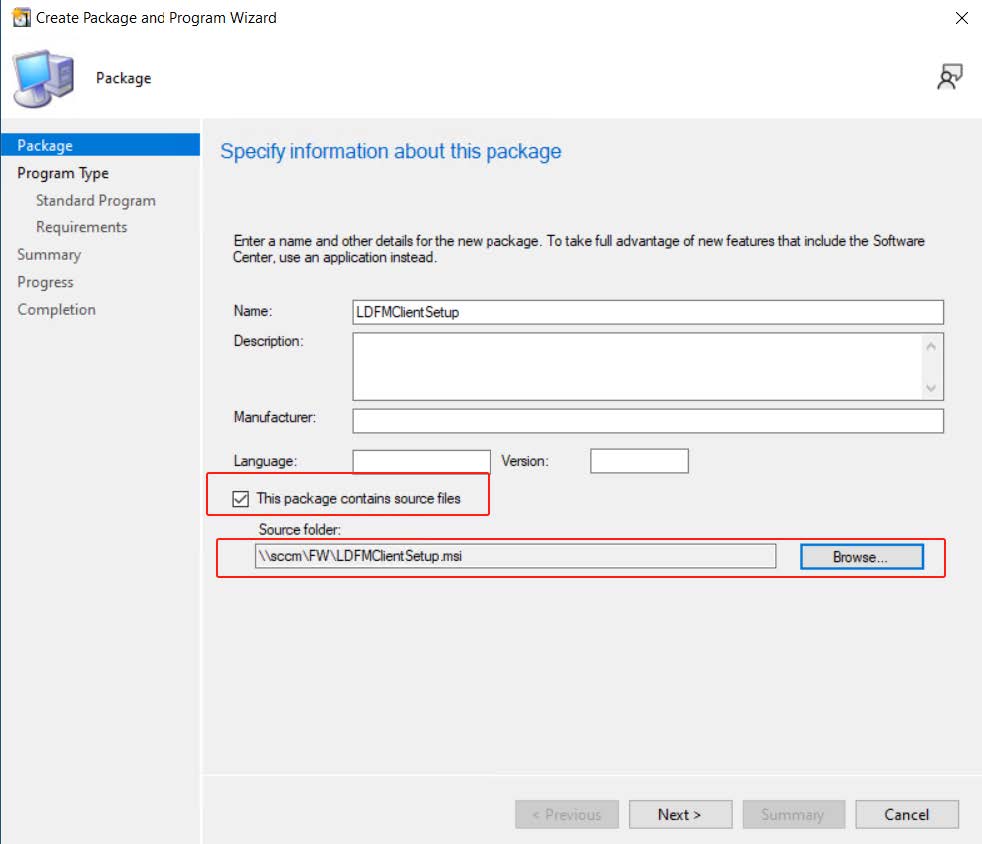
Create Package
Navigate to
Software Library > Overview > Application Management > Packages,
then create a package.
Specify the network share location that contains the LDFM Client installation
package, for example, \\sccm\FW\LDFMClientSetup.msi.
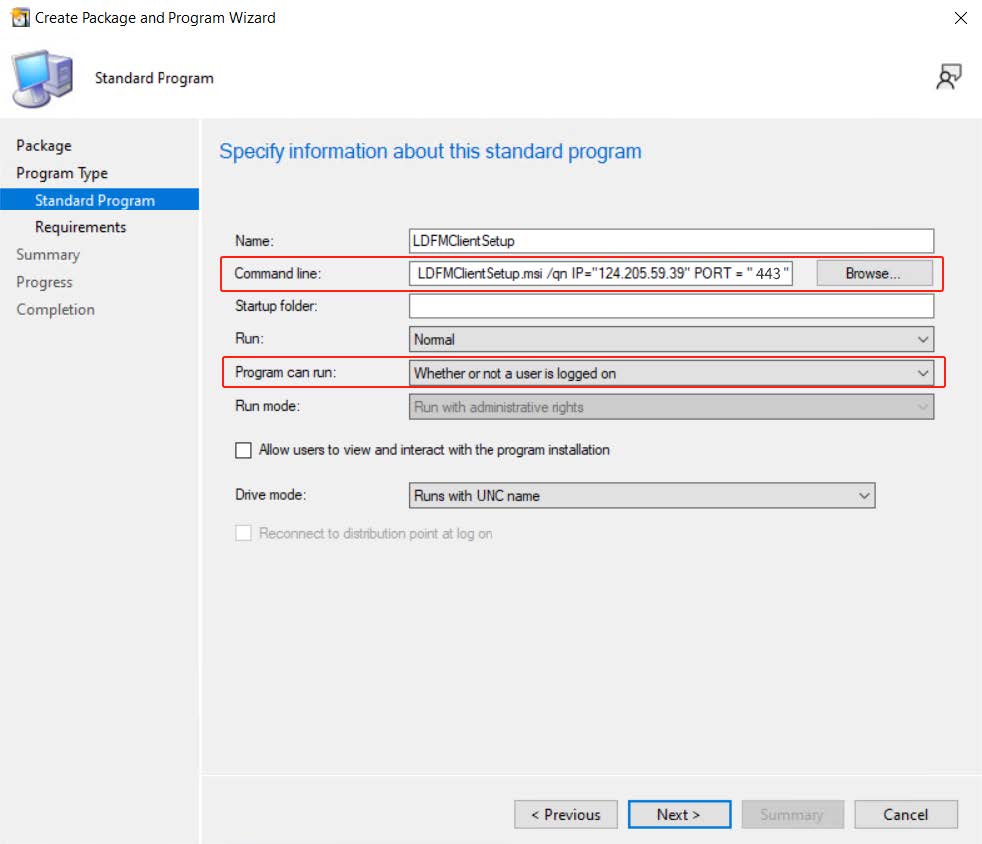
Configure the standard program
Open the client configuration file (LDFMConfig.ini) generated during
LDFM Server installation, enter the installation command and its parameters.
Example command line:
msiexec /i "LDFMClientSetup.msi" /qn IP="124.205.59.39"
PORT="443" DEVICEMTLSPORT="8444"
ENROLLMENTKEY="53504fd320a9a241bbd129a7039765e17e6089aa5b14cd1795c53564f26cdb95"
SHA1="FA15D86178563E532C2F50FEF642C3B85A0FE7C1"
IP can be an IP address or a domain name.
Program can run: Whether or not a user is logged on
Specify the requirements for this standard program
- Select "This program can run on any platform"
- Specify "Estimated Disk Space" 50MB.
- Follow the installation wizard
6.1.2 Distribute Content
Navigate to
Software Library > Overview > Application Management > Applications
to distribute the newly created application.
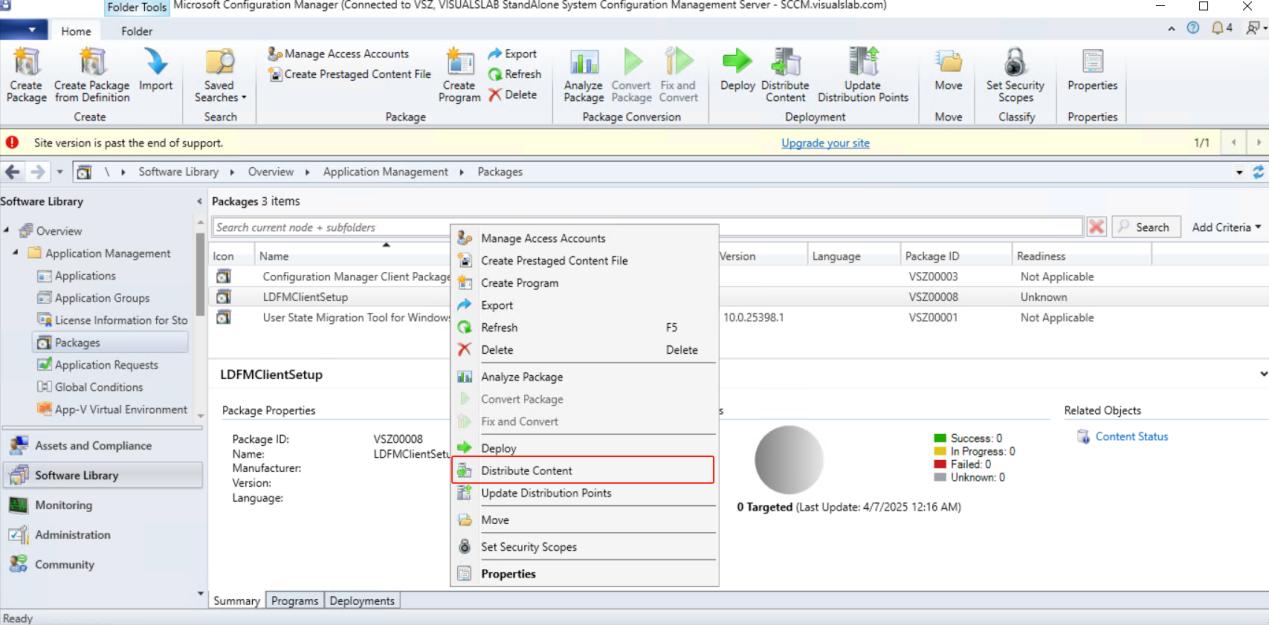
Select Distribution Points.
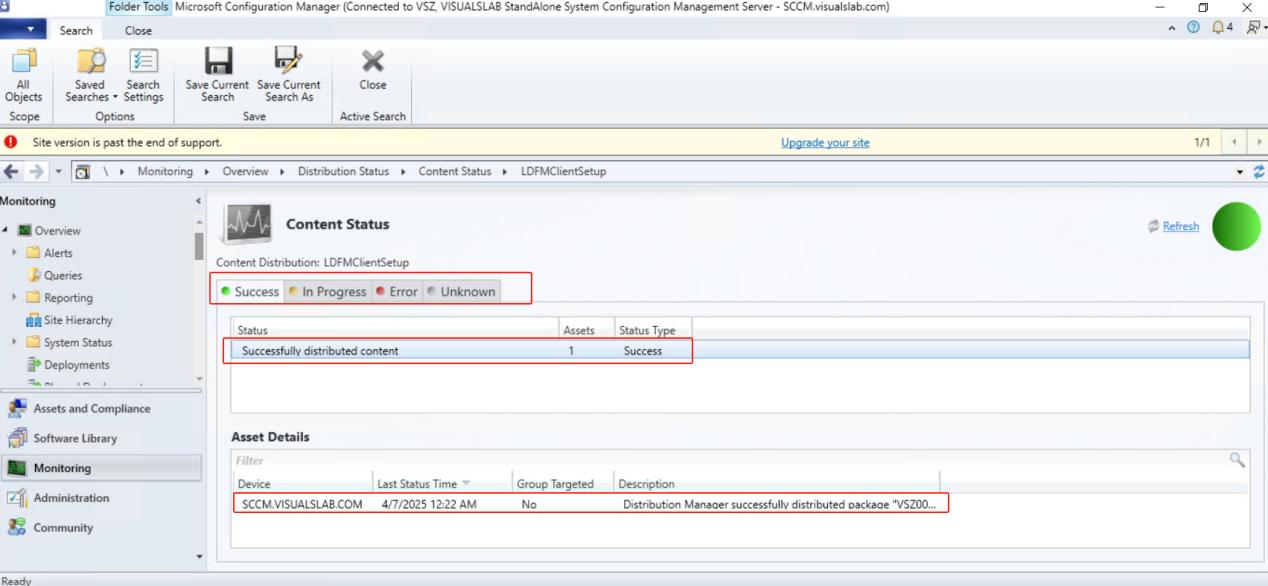
Navigate to
Monitoring > Overview > Distribution Status > Content Status to
view the content status, then wait until the content status changes to
"Success".
6.1.3 Deployment
Navigate to
Software Library > Overview > Application Management > Packages to
deploy the application.
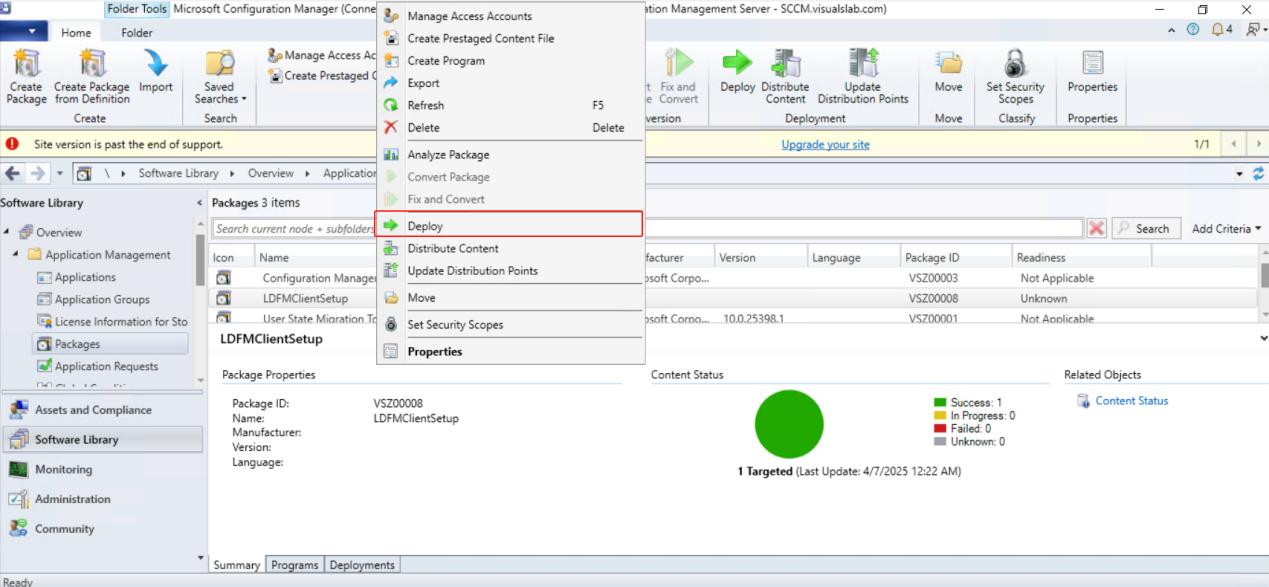
Select the target device collection and continue with the deployment wizard.
Deployment Settings
- Set Scheduling, for example, "As soon as possible" and "Rerun if failed previous attempt" for the rerun behavior.
- Set User Experience: Check "Software Installation" to download content from the distribution point and run locally.
- Set Distribution Points.
- Follow the installation wizard.
6.1.4 Deploy Progress Tracking
Navigate to Monitoring > Overview > Deployments, review the
deployment status and installation results.
6.2 Deployment via Intune (Windows)
6.2.1 Deliver LDFM Upgrade
Create a Windows Application
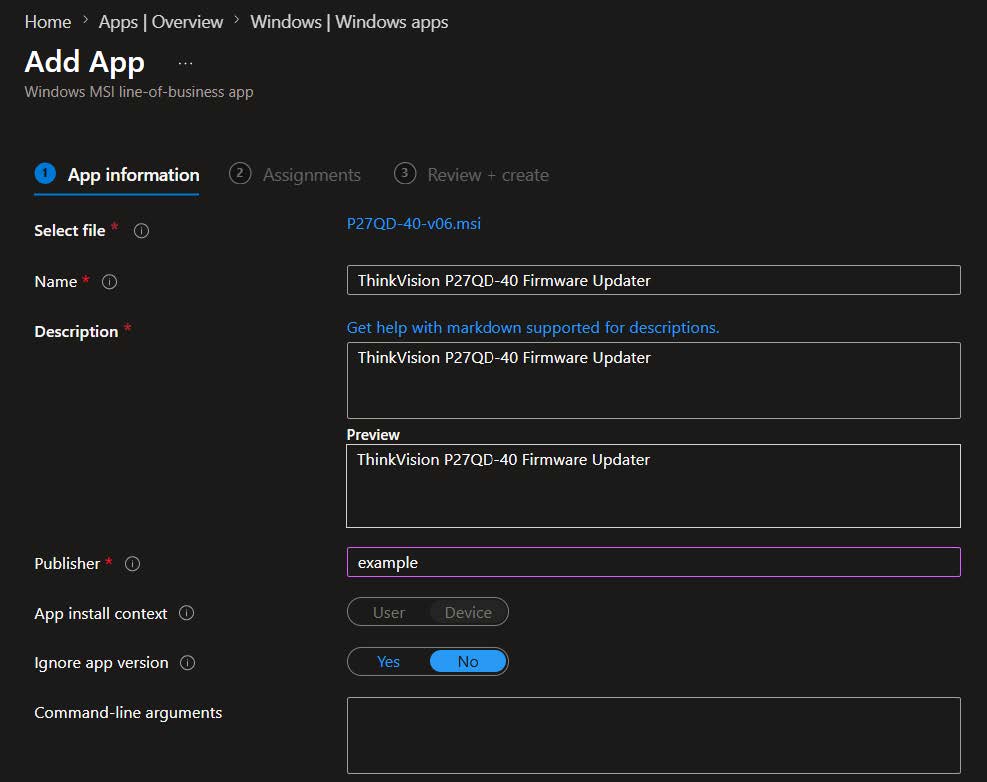
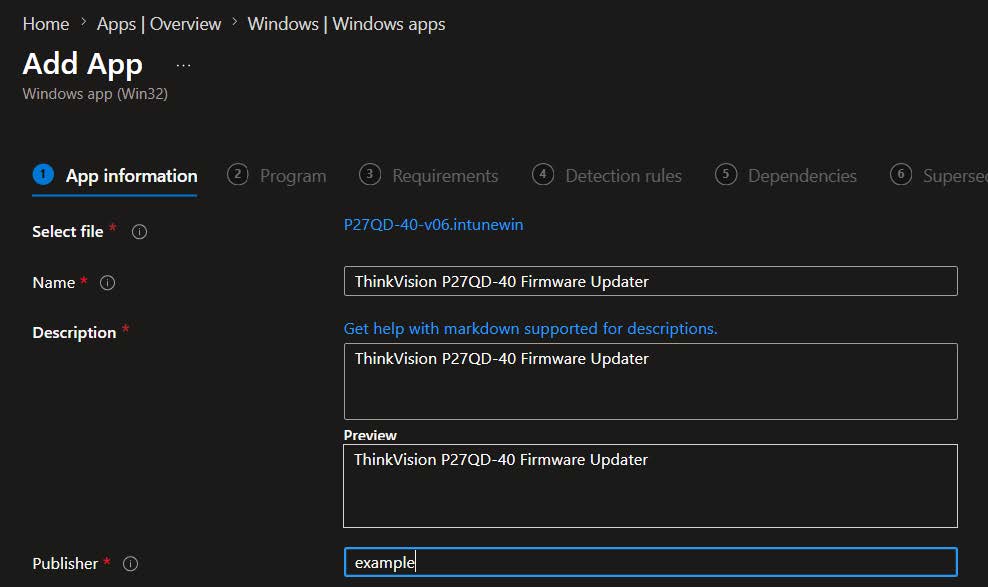
In the "App Information" tab, you can upload either an MSI package or an IntuneWin package.
Upload MSI package (Line-of-business app)
Fill in the required information, then continue until you're done.
Upload Intunewin package (Windows app (Win32))
Fill in the required information.
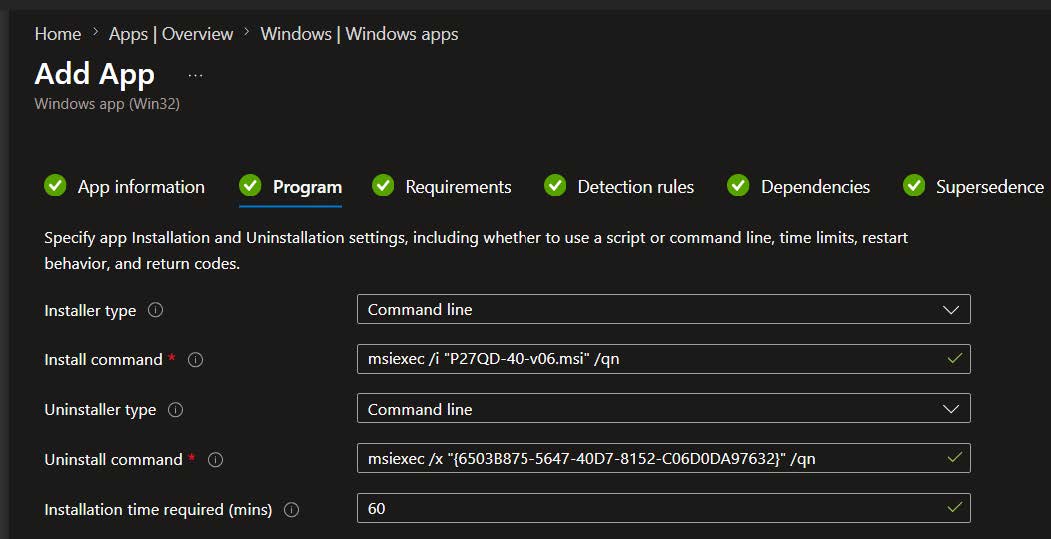
Use the default configuration in the "Program" tab:
- The installation command is:
msiexec /i "P27QD-40-v06.msi" /qn - The uninstallation command is:
msiexec /x "{6503B875-5647-40D7-8152-C06D0DA97632}" /qn
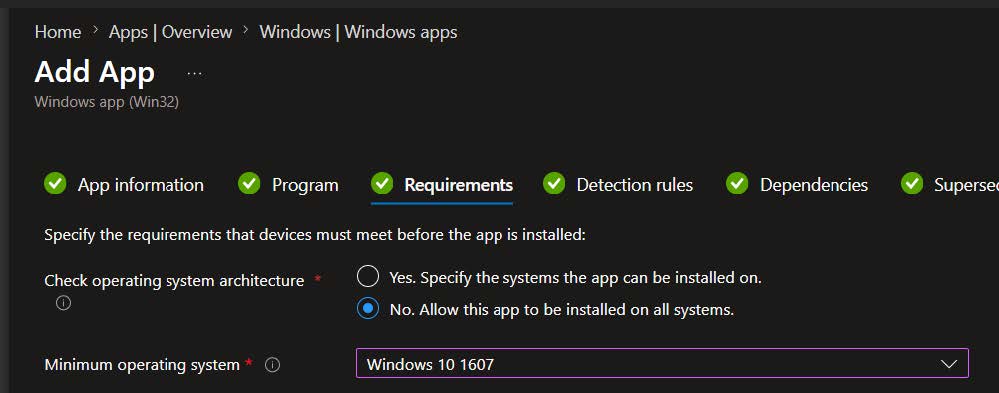
In the "Requirements" tab, specify the minimum operating system version: Windows 10 1607.
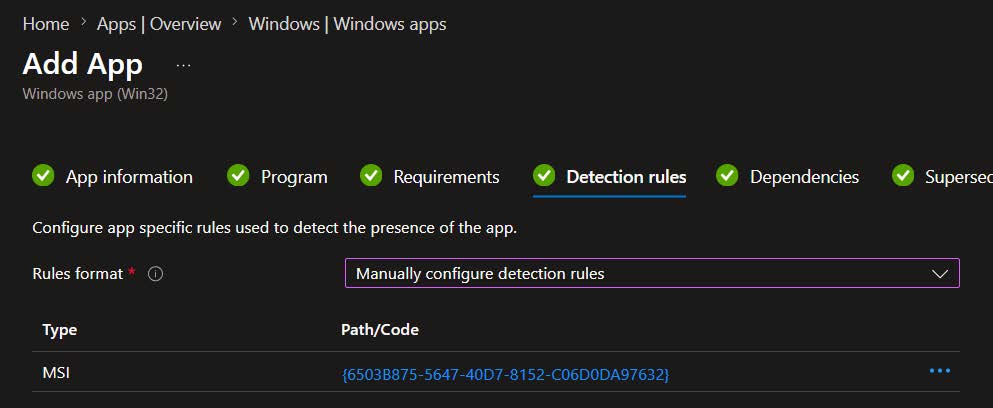
In the "Detection Rules" tab, configure an MSI detection rule, then assign the application to the target group.
6.2.2 Deliver LDFM Client
Currently, LDFM Client deployment through Intune supports MSI packages only.
Create a Windows Application
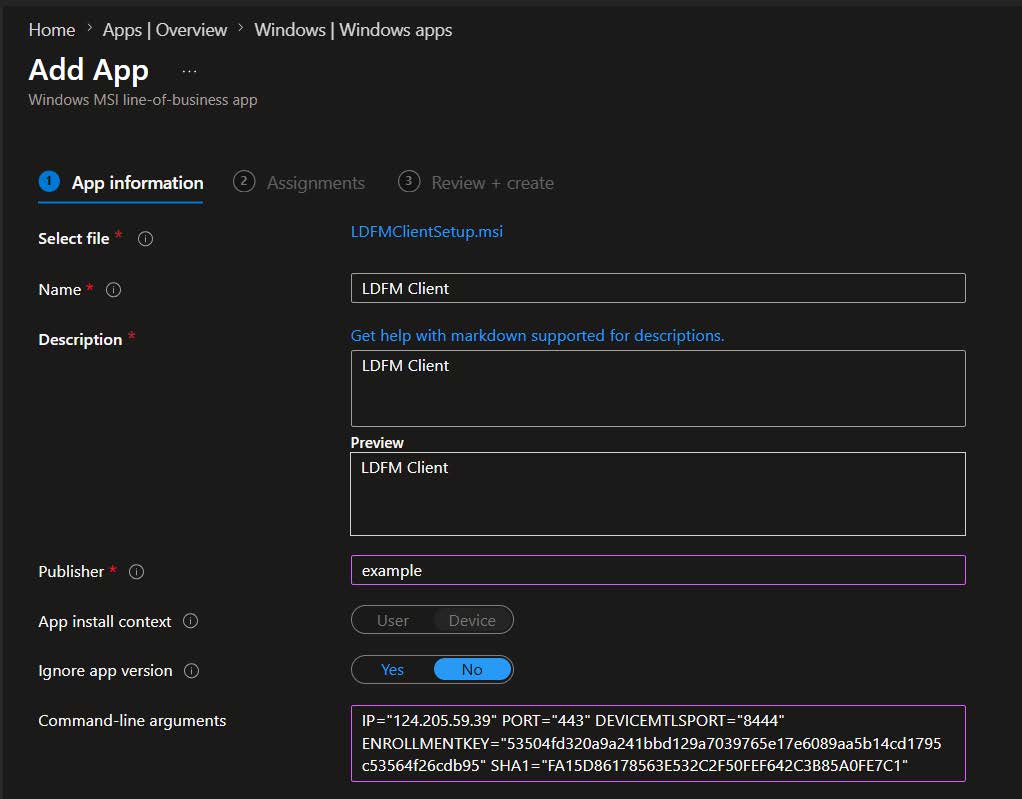
In the "App Information" tab, upload LDFMClientSetup.msi as a
Line-of-business app, then provide the required application information.
Use the default configuration in the "Program" tab:
Open the client configuration file (LDFMConfig.ini) generated during
LDFM Server installation, enter the installation command and its parameters.
Example command-line arguments:
IP="124.205.59.39" PORT="443" DEVICEMTLSPORT="8444"
ENROLLMENTKEY="53504fd320a9a241bbd129a7039765e17e6089aa5b14cd1795c53564f26cdb95"
SHA1="FA15D86178563E532C2F50FEF642C3B85A0FE7C1"
Then assign it to the target group.
6.3 Deployment via Intune (macOS)
6.3.1 Create a Configuration Policy
Log in to the Intune admin center, navigate to
Devices > MacOS > Configuration, and then click
"Create".
Select the configuration profile type as "Template", the template name as "Custom", and click "Create".
In the "Basics" tab, enter a profile name (for example:
Idfm_sever_config) and click "Next".
In the "Configuration settings" tab, enter the custom configuration name and select the deployment channel as "Device channel".
The configuration profile is as follows:
<?xml version="1.0" encoding="UTF-8"?>
<!DOCTYPE plist PUBLIC "-//Apple//DTD PLIST 1.0//EN" "http://www.apple.com/DTDs/PropertyList-1.0.dtd">
<plist version="1.0">
<dict>
    <key>PayloadContent</key>
    <array>
    <!-- this is the server parameters -->
        <dict>
            <key>PayloadDisplayName</key>
            <string>LDFM Server Configuration</string>
            <key>PayloadIdentifier</key>
            <string>com.lenovo.LDFM.server</string>
            <key>PayloadType</key>
            <string>com.lenovo.LDFM.server</string>
            <key>PayloadUUID</key>
            <string>E23F5A6B-1234-5678-9ABC-DEF123456789</string>
            <key>PayloadVersion</key>
            <integer>1</integer>
            <key>Server</key>
            <string>10.100.20.50</string>
            <key>Port</key>
            <string>443</string>
            <key>Protocol</key>
            <string>https</string>
         <key>DeviceMtlsPort</key>
         <string>8444</string>
         <key>EnrollmentKey</key>
         <string>1134f5c385ebacc51c7635073ca0f9a584d617b47de7cde025636d4061c21e9b</string>
         <key>UseSelfSignedCertificate</key>
         <true/>
         <key>CertificateFingerprint</key>
         <string>FA15D86178563E532C2F50FEF642C3B85A0FE7C1</string>
        </dict>
    </array>
    <key>PayloadDescription</key>
    <string>Configuration settings for LDFM Client</string>
    <key>PayloadDisplayName</key>
    <string>LDFM Client Configuration</string>
    <key>PayloadIdentifier</key>
    <string>com.lenovo.LDFMClient.config</string>
    <key>PayloadOrganization</key>
    <string>Lenovo</string>
    <key>PayloadType</key>
    <string>Configuration</string>
    <key>PayloadUUID</key>
    <string>A1B2C3D4-E5F6-A7B8-C9D0-E1F2A3B4C5D6</string>
    <key>PayloadVersion</key>
    <integer>1</integer>
</dict>
</plist>
In the "Assignments" tab, assign the configuration profile to the target group and click "Next".
Finally, in the "Review" tab, after reviewing the configuration, click "Create" to complete the process.
6.3.2 Distribute LDFM Client
Navigate to the Apps > macOS apps page in sequence, click
"Create", and select "MacOS app (PKG)" to
create a MacOS application.
Upload the package file "LDFMClientSetup.pkg".
Leave the Program tab unchanged.
In the selection of the minimum operating system version, Select macOS High Sierra 10.13 or later.
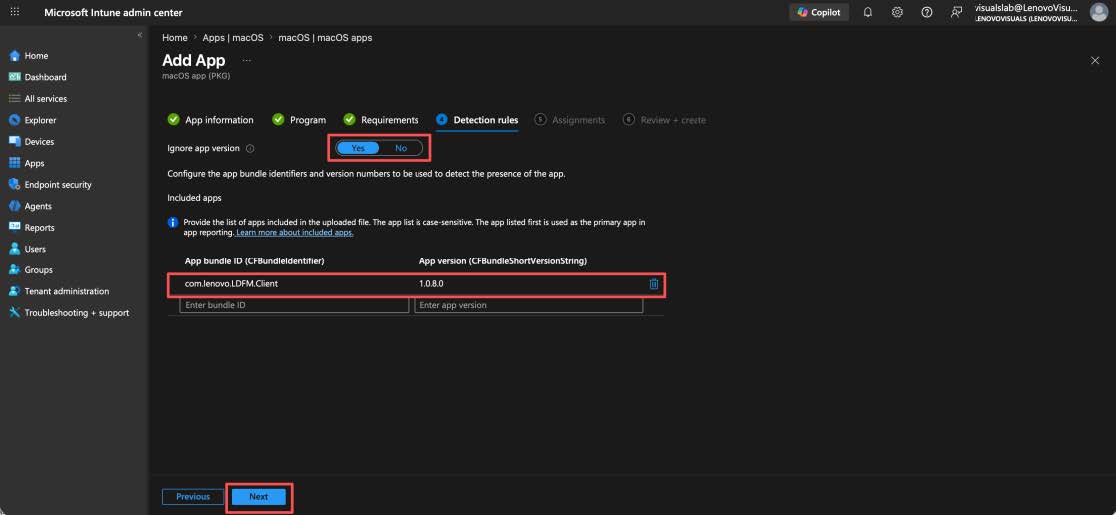
In the Detection rules tab, configure the application package
identifier as com.lenovo.LDFM.Client, and the application version
as the current version number, for example: 1.0.8.0.
In the "Assignments" tab, assign the application to the target groups, such as macOS devices, etc.
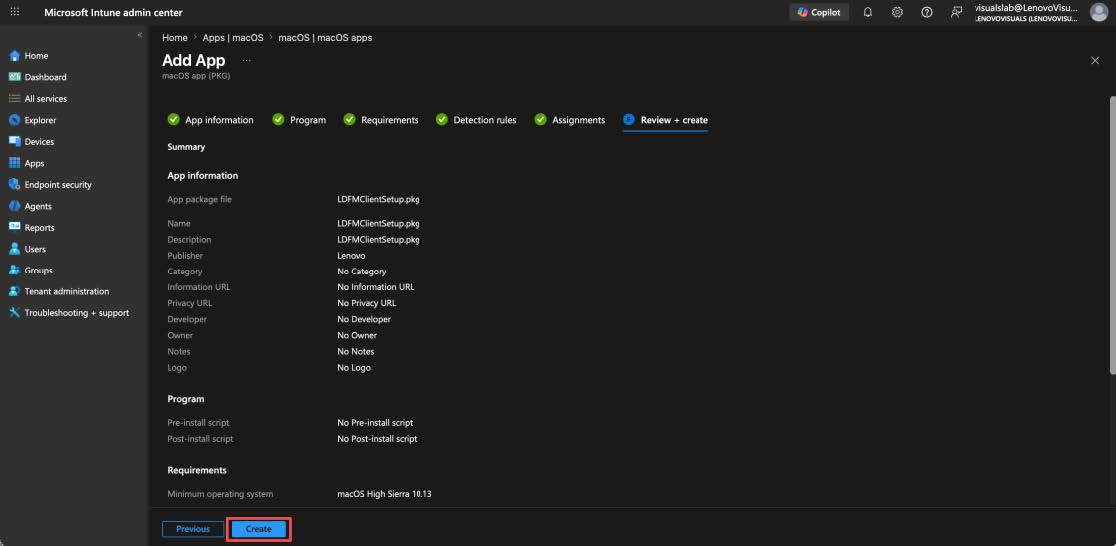
Navigate to the Review + Create page. After confirming that the application information, program, requirements, detection rules, assignments, and other contents are correct, click "Create".
6.3.3 Verify Deployment Status
Intune Administrator Verification
On the device configuration page of Intune, locate the configuration profile (for
example: Idfm_sever_config), click "View Report"
to check whether the device check-in status is successful.
Check whether the device installation status of the app is "Installed".
Client Device Verification
Go to General > Device Management page to check whether the
configuration profile "LDFM Client Configuration" is installed.
User Guide
1. Lenovo Display Fleet Manager (LDFM)
Lenovo Display Fleet Manager (LDFM) is an enterprise tool for centralized monitor management. It enables remote configuration of On-Screen Display (OSD) settings, firmware upgrades, and monitor control operations.
2. LDFM Deployment
For detailed deployment instructions, see the Lenovo Display Fleet Manager Installation Guide.
3. Initial Login
After the installation is completed, use one of the following methods to access LDFM:
- On the server, access
http(s)://localhost/using a web browser. - From a remote host, access
https:// <server IP address or domain name>/.
3.1 Get Initial Password
- Username: admin
- Initial password: Click the password field to display a randomly generated password at the top of the page. Copy and paste it into the field.
- Click "Log In".
3.2 Forced Password Change
- Enter the initial password.
- Enter a new password.
- Confirm the new password.
- Click "Confirm".
3.3 Forgot Password
Note: This feature is only available after the initial login.
- Click "Reset Password".
- Contact the administrator to obtain a temporary password.
4. Monitor List
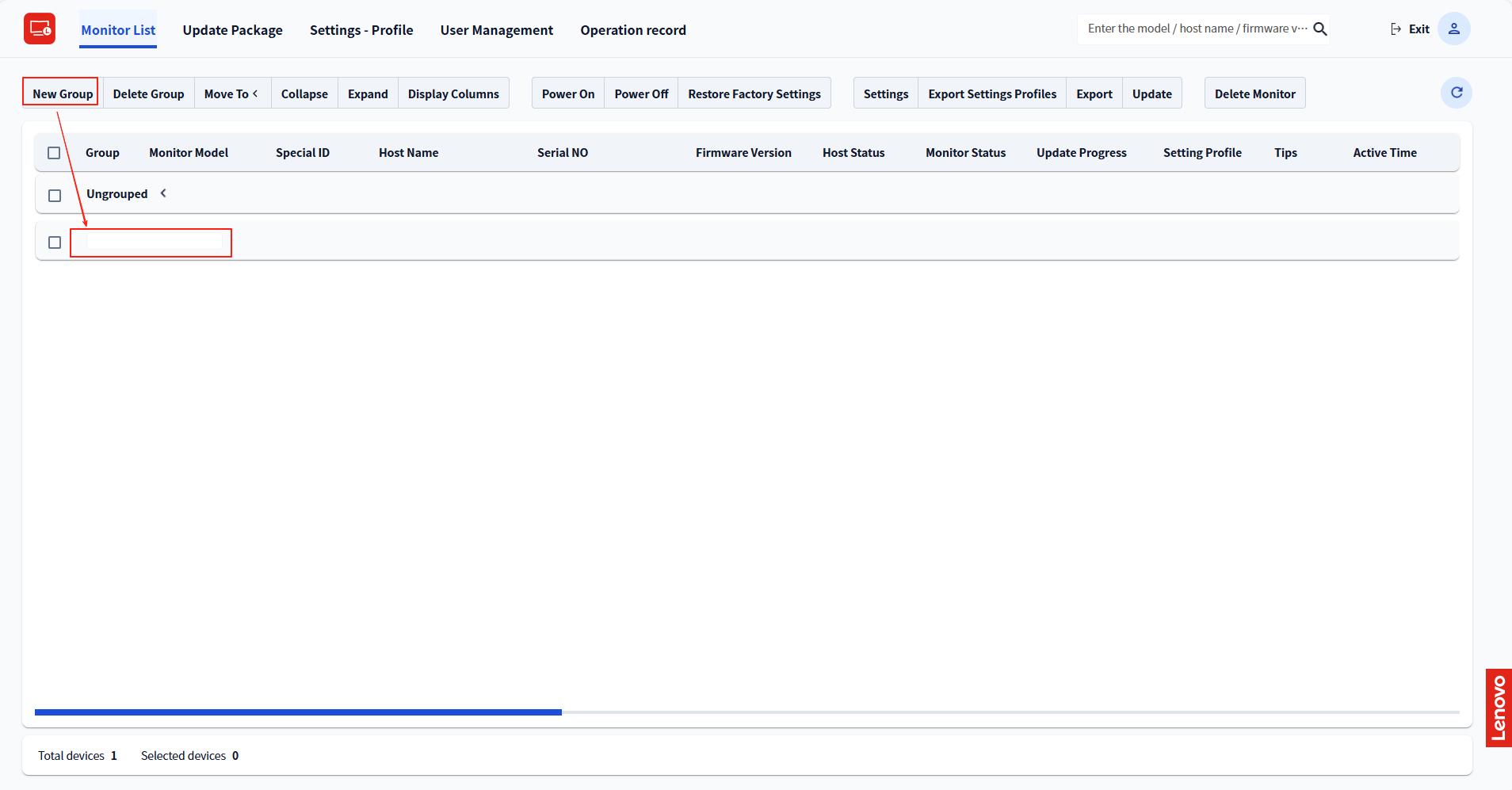
4.1 Group Management
- Click "New Group" to create a group.
- Double-click a group name to rename the group.
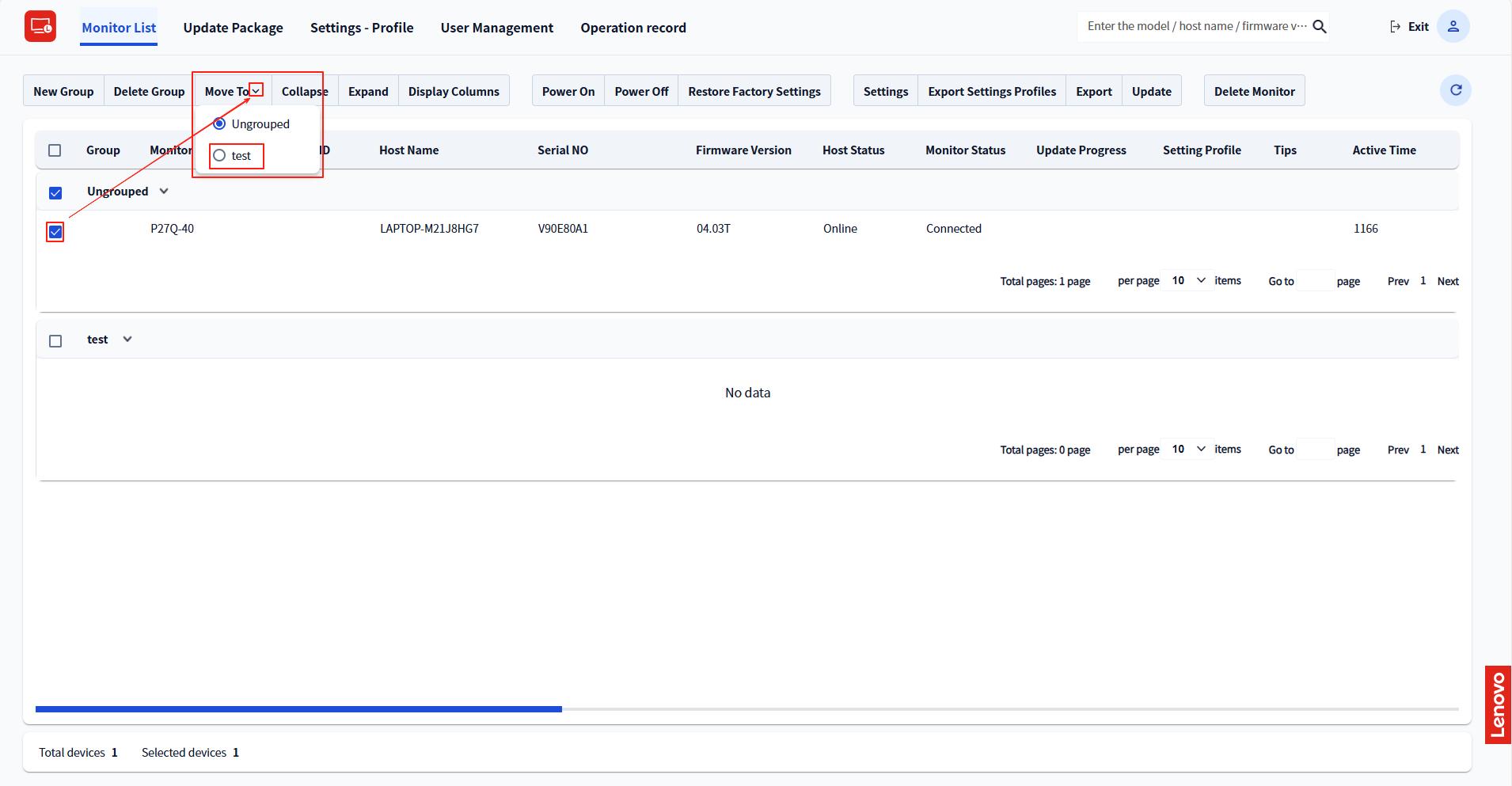
- Choose the monitors, and then click "Move to" to move monitors to another group.
4.2 Display Columns
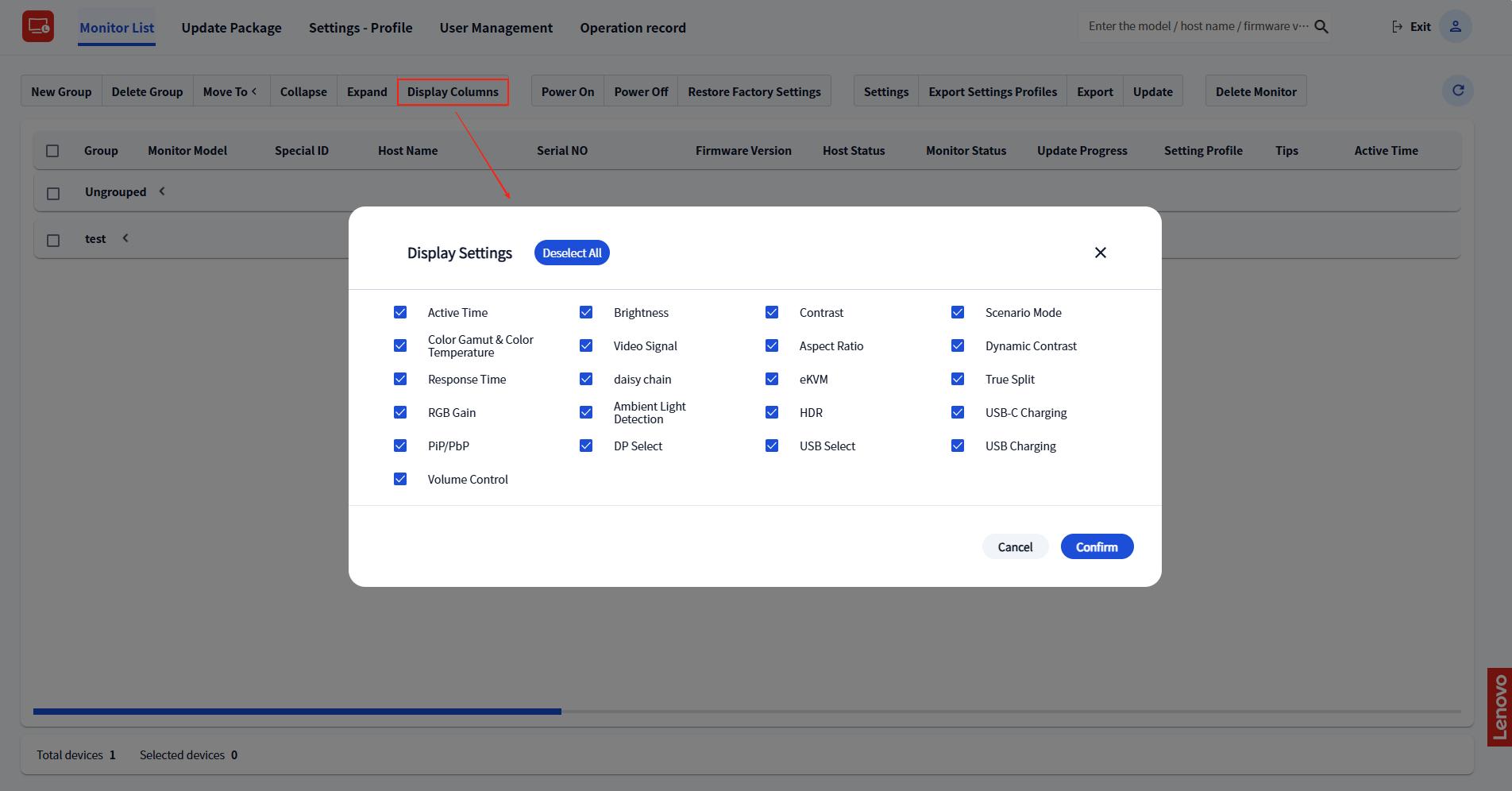
By default, the Monitor List displays all On-Screen Display (OSD) columns.
To customize the displayed columns, click "Display Columns" and select the items you want to show.
4.3 Settings
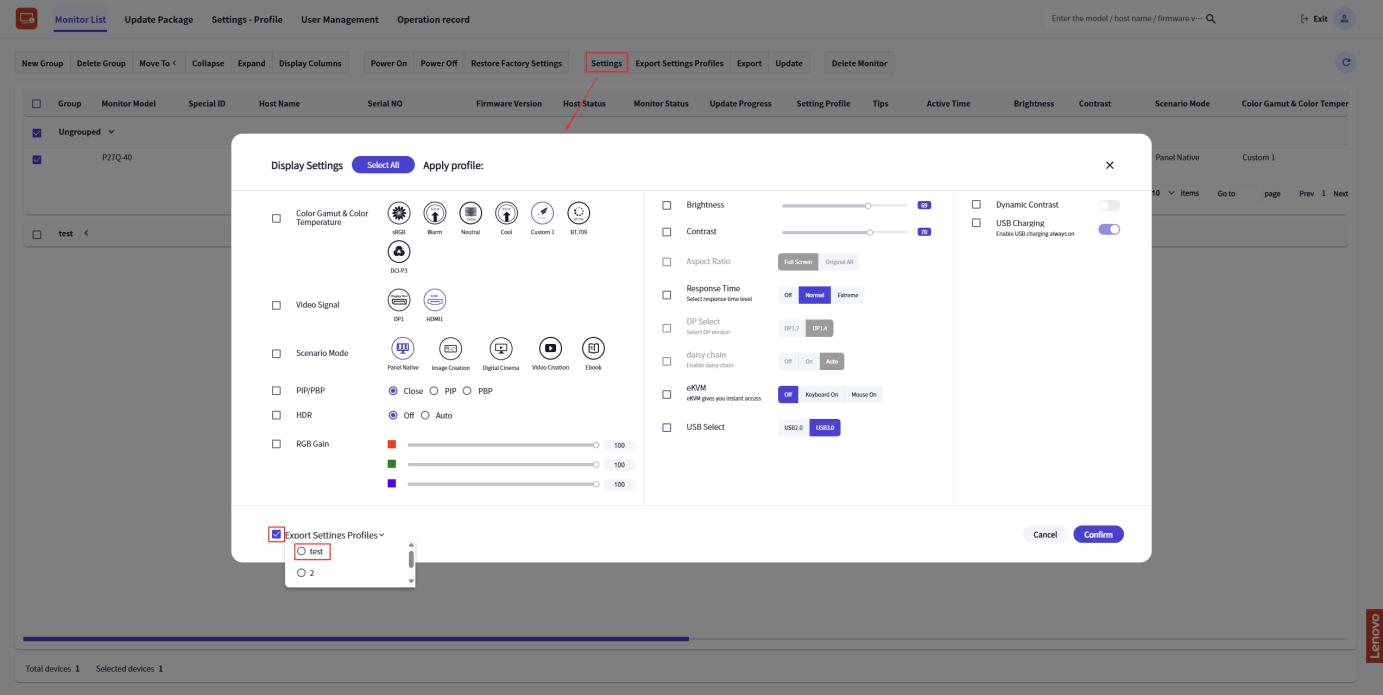
- Select a monitor, then click "Settings".
- Configure the desired settings.
You can also select a Settings Profile in the lower-left corner.
4.4 Export Settings Profile
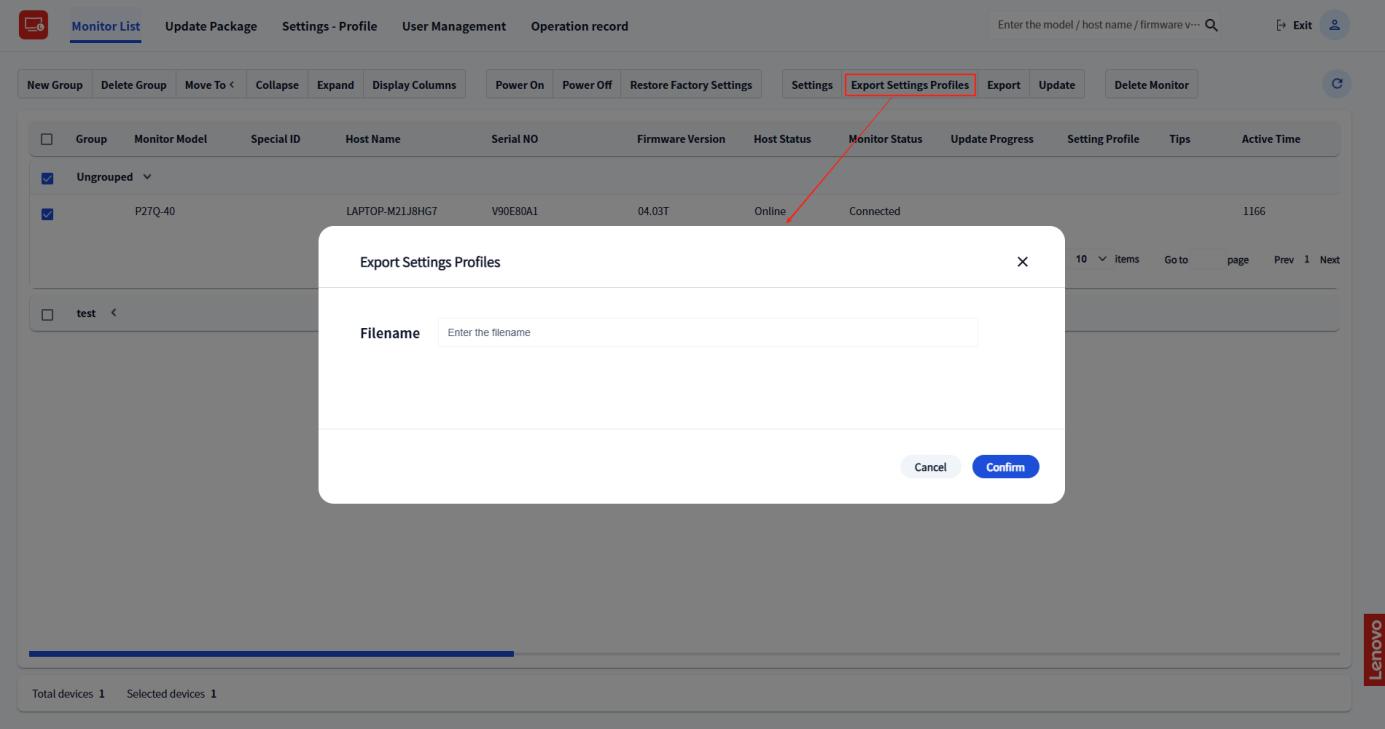
- Select a monitor, then click "Export Settings Profile".
- Enter a file name.
- Click "Confirm".
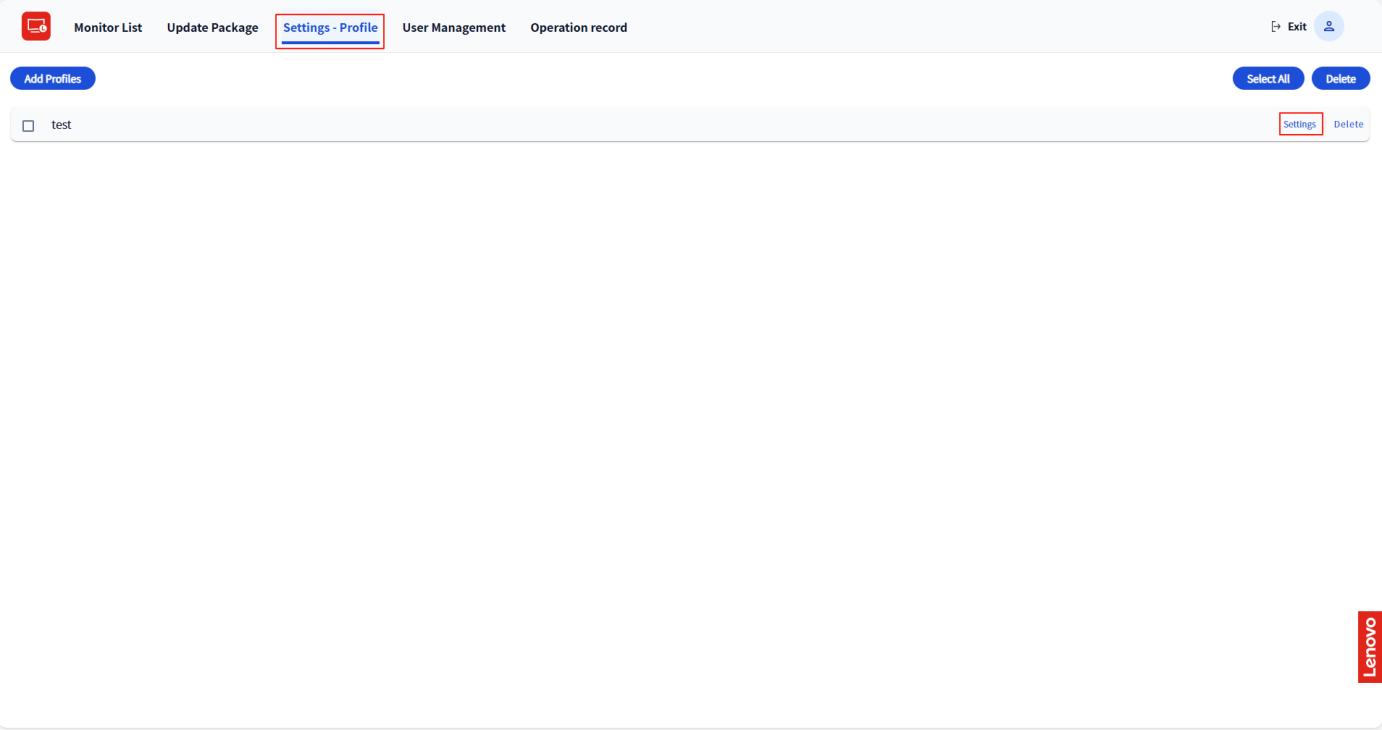
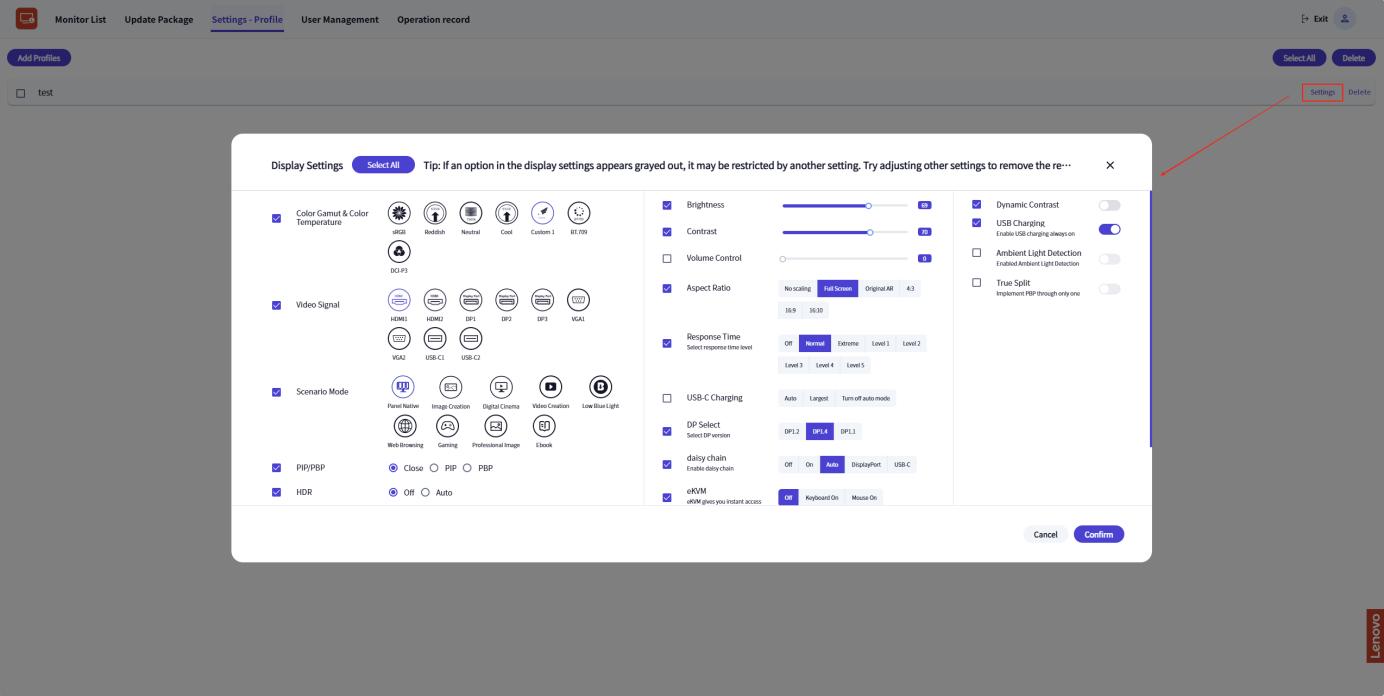
- The new profile will be saved in the Settings - Profiles list.
- Click "Settings" to view the profile details.
4.5 Export
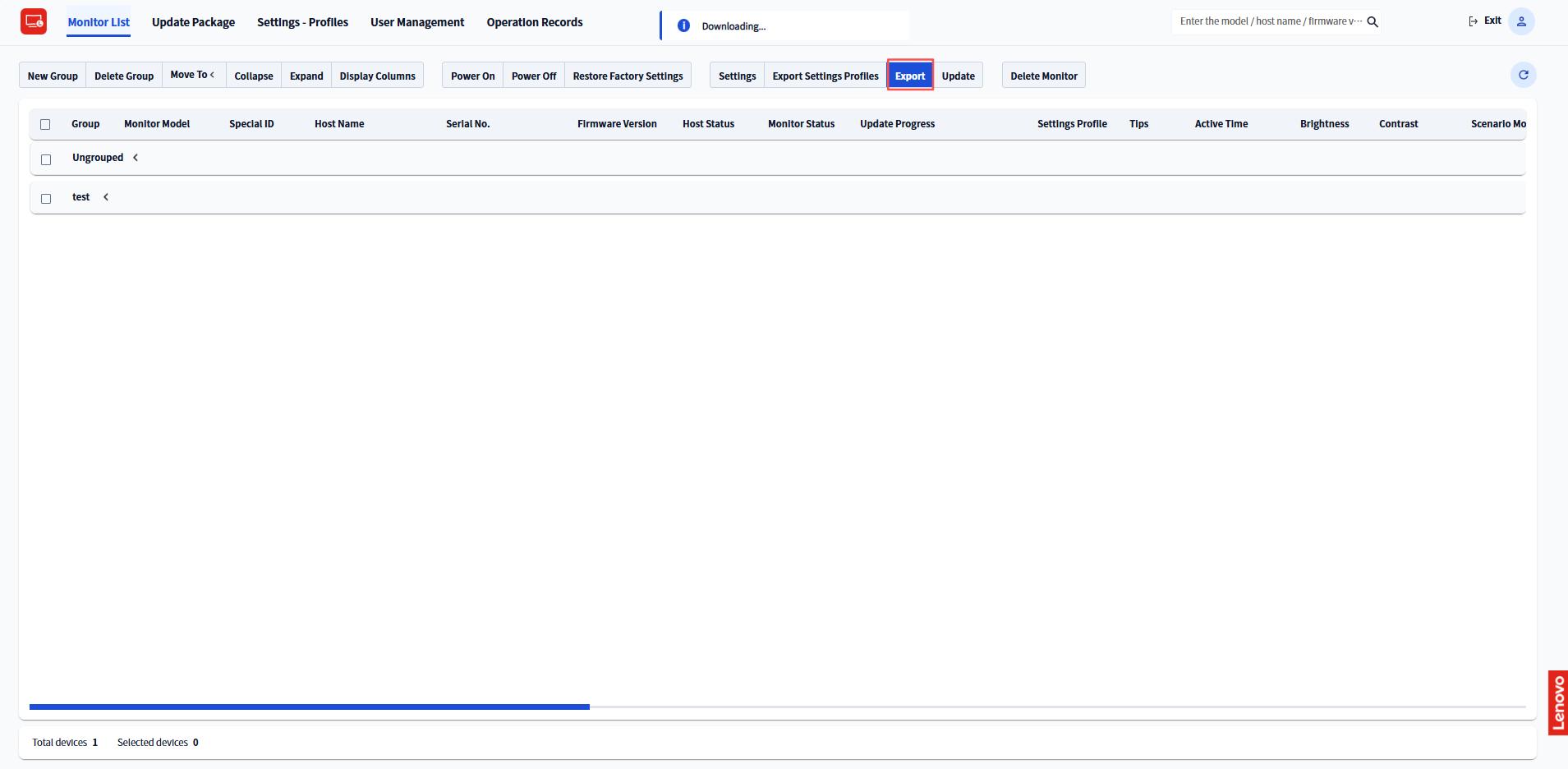
- Click "Export" to download the display list.
4.6 Update
4.6.1 Create Update Task
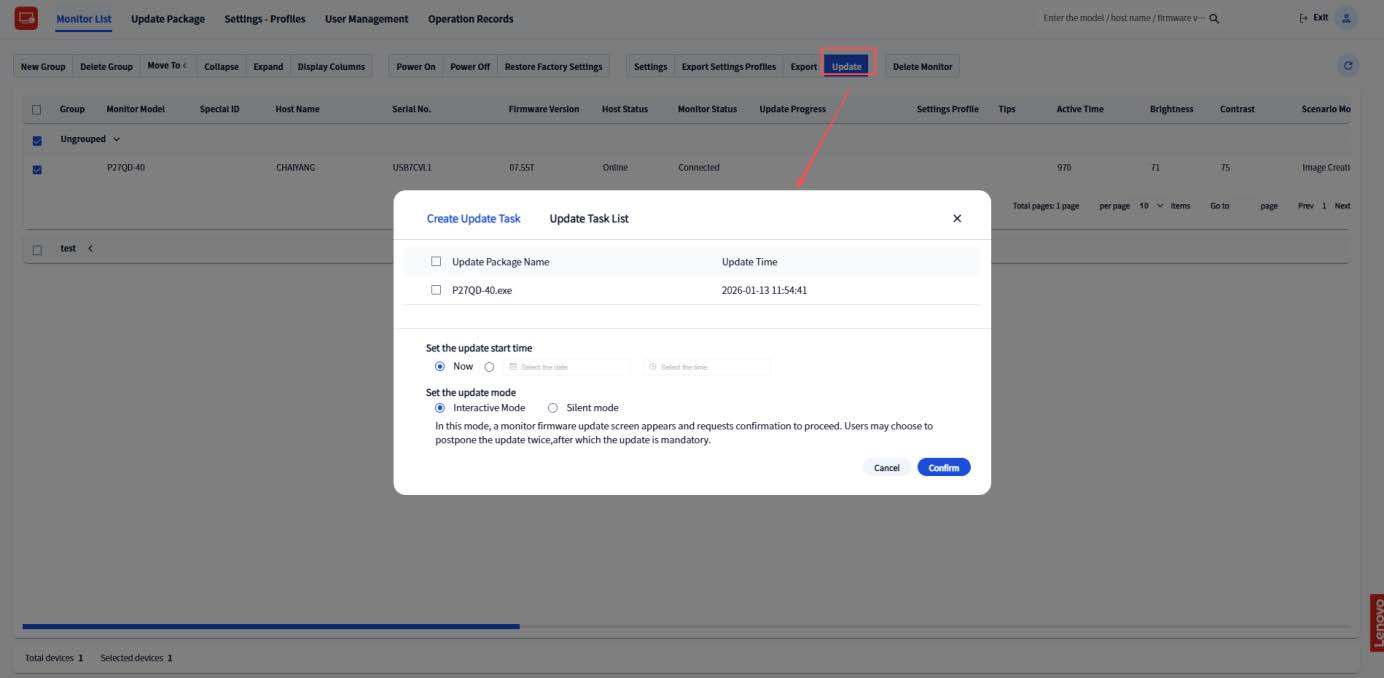
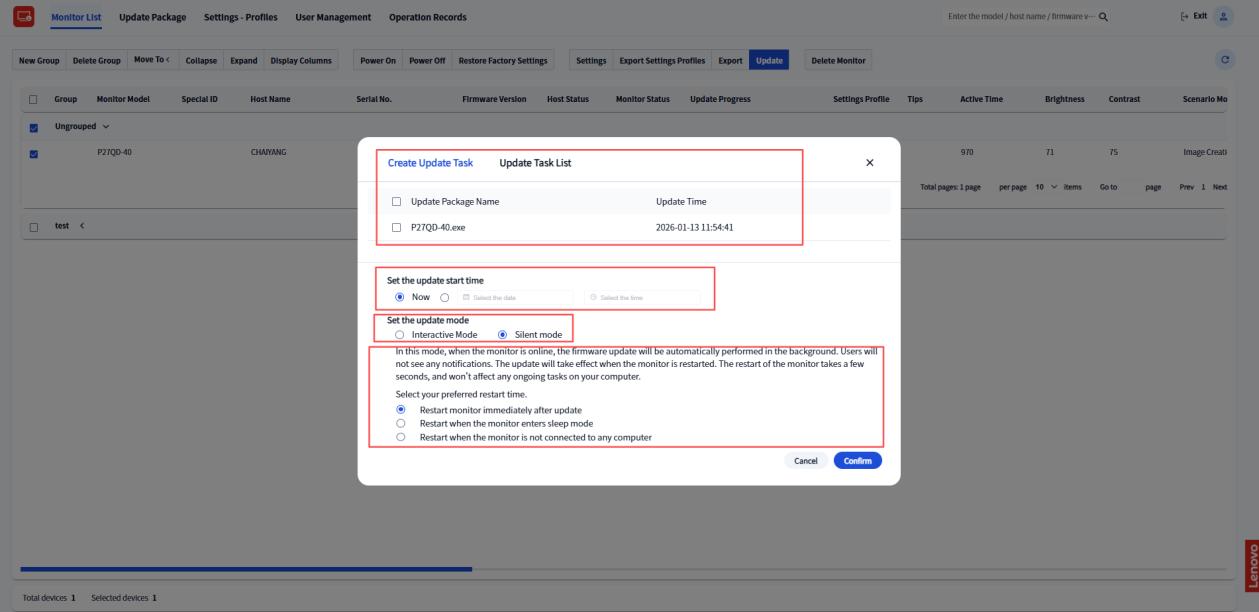
- Select a monitor, then click "Update".
- Select the latest update package, then upload the update package. For details, please refer to 5. Update Package.
- Select the update start time (either "Now" or "a specified time").
- Set the update mode (either "Interactive" or "Silent").
- Click "Confirm".
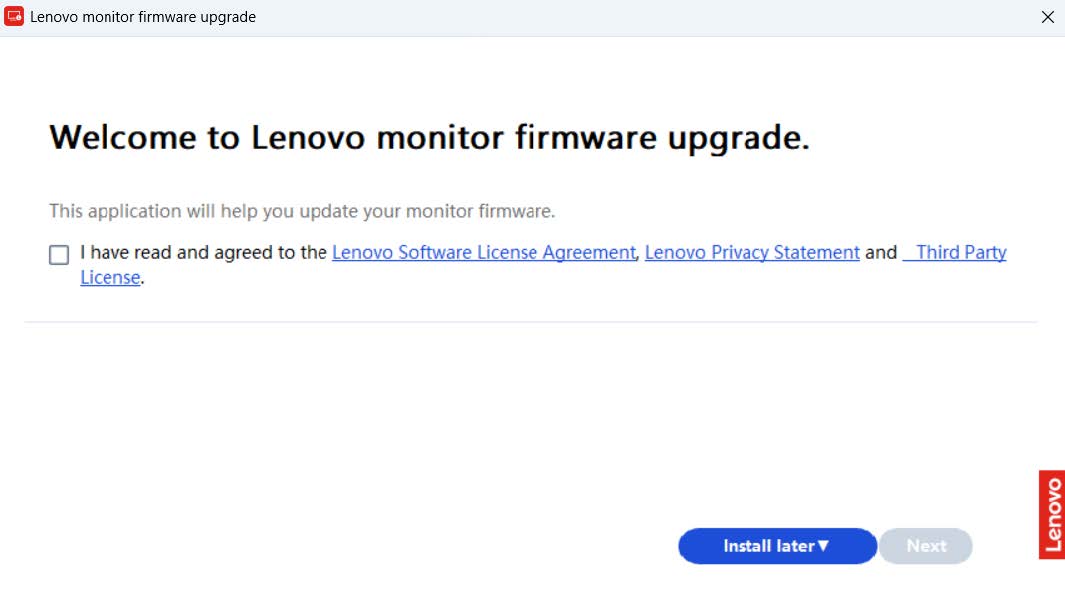
- If the administrator chooses Interactive mode, the upgrade window will automatically appear on the client device.
- End users can open the corresponding web pages by clicking the links below: "Lenovo Software License Agreement", "Lenovo Privacy Statement" and "Third Party License".
- Select "I have read and agreed to the Lenovo Software License Agreement, Lenovo Privacy Statement, and Third Party License."
- Click "Next" to start the installation process and proceed directly to Step 12.
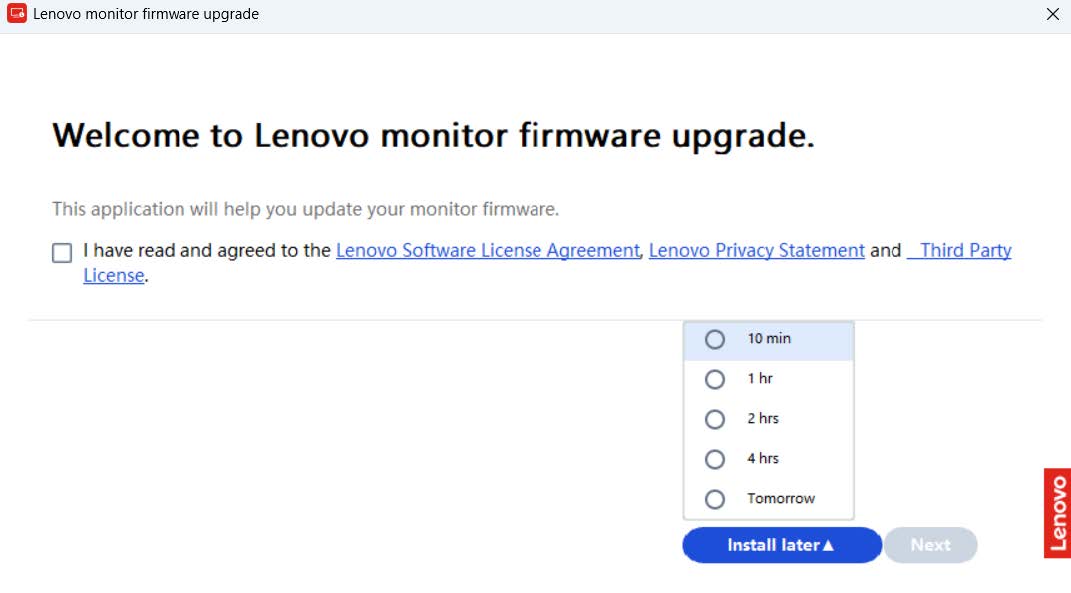
- Alternatively, click "Install Later" and select a preferred installation time.
- When the scheduled installation time is reached, the upgrade window will appear automatically. Click "Next" to proceed with the installation.
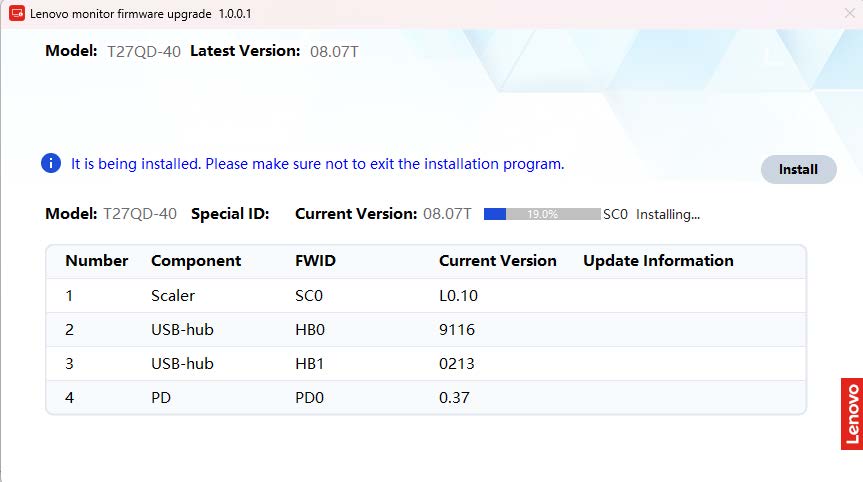
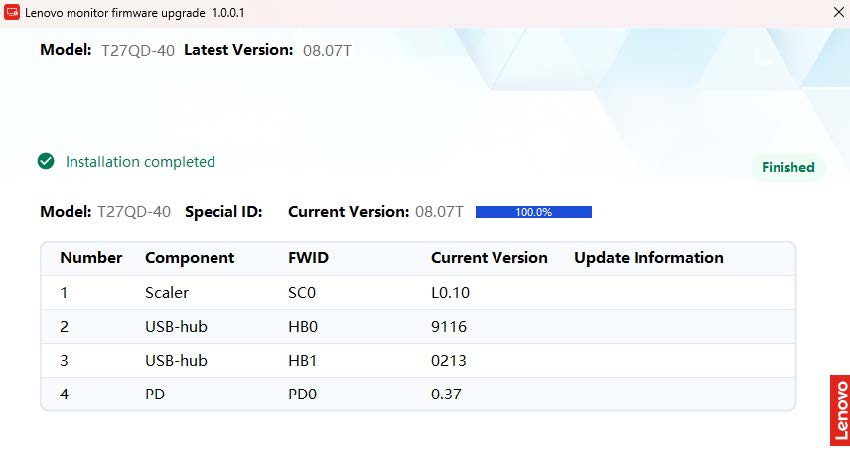
- Confirm pre-installation checks, such as FW information. After all checks pass, click "Install". If any check fails, contact the administrator for assistance.
- Wait for the installation to progress, then close it. If the installation fails, contact the administrator for assistance.
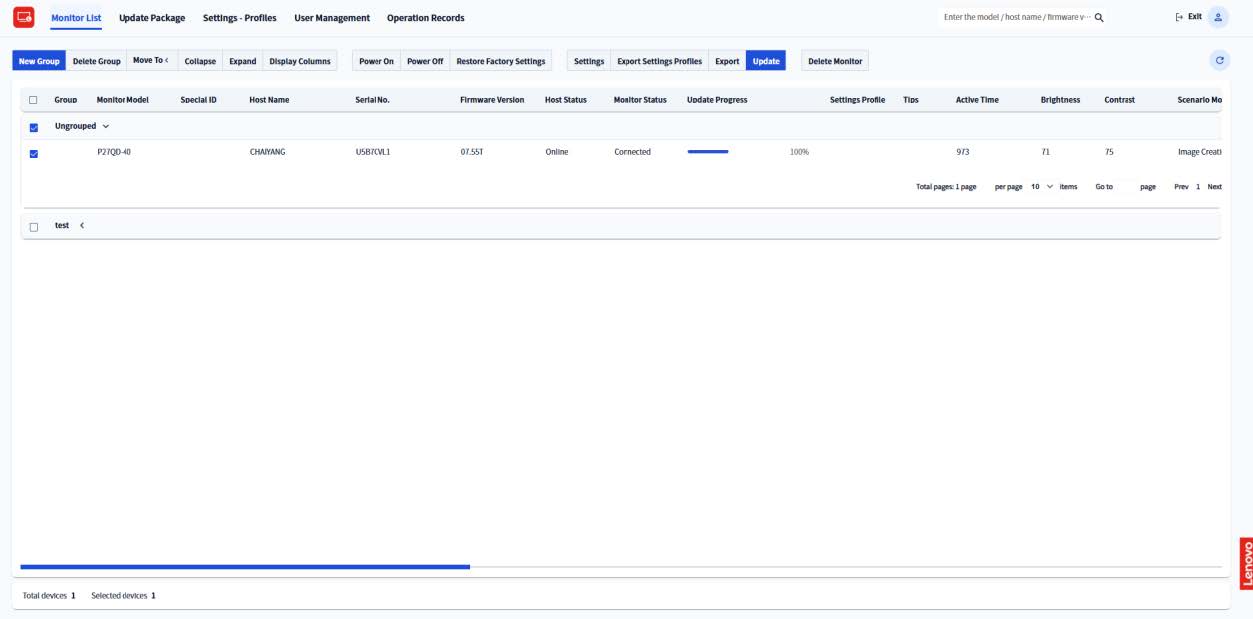
- During the installation process, the upgrade progress is displayed in LDFM. If you have selected silent installation, the above upgrade package progress interface will not be shown.
4.6.2 Update Task List
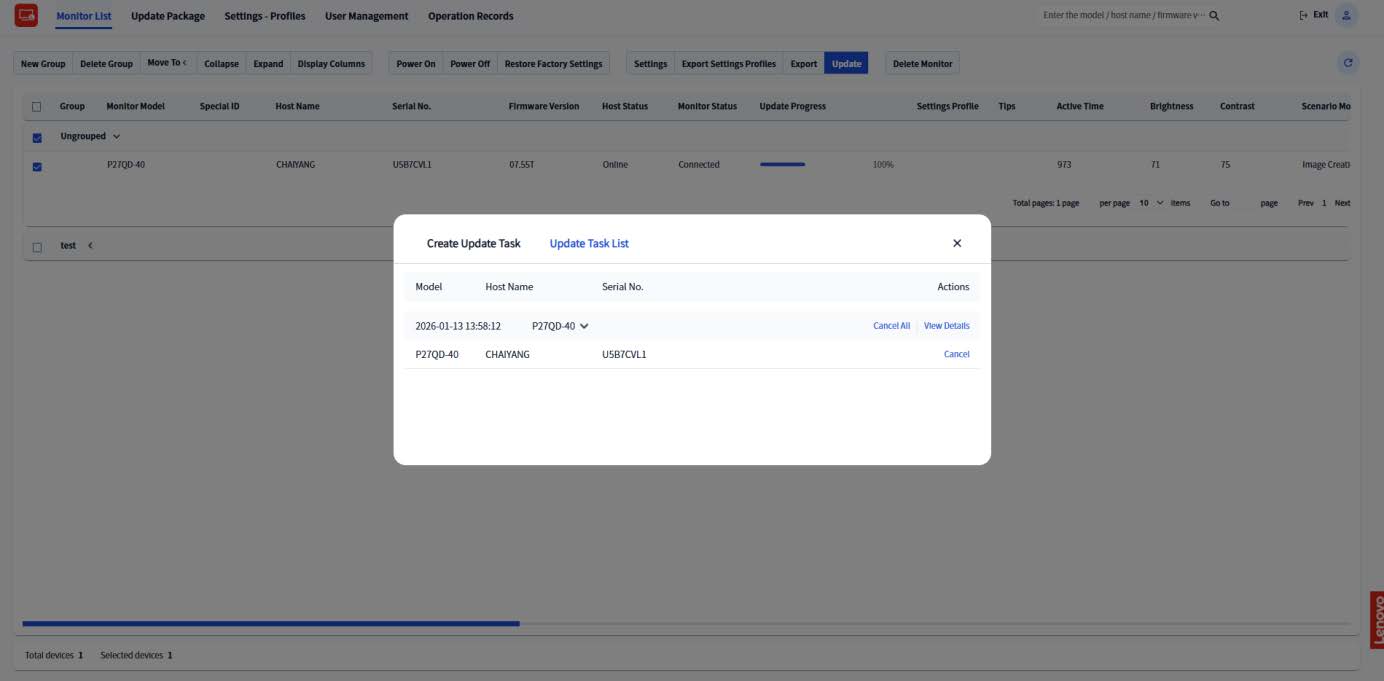
If you have selected to specify a time for an update task, you can view the generated task in the update task list.
- Click "View Details" to check the upgrade details.
- Click "Cancel" or "Cancel All" to cancel the update task.
4.7 Delete Monitor
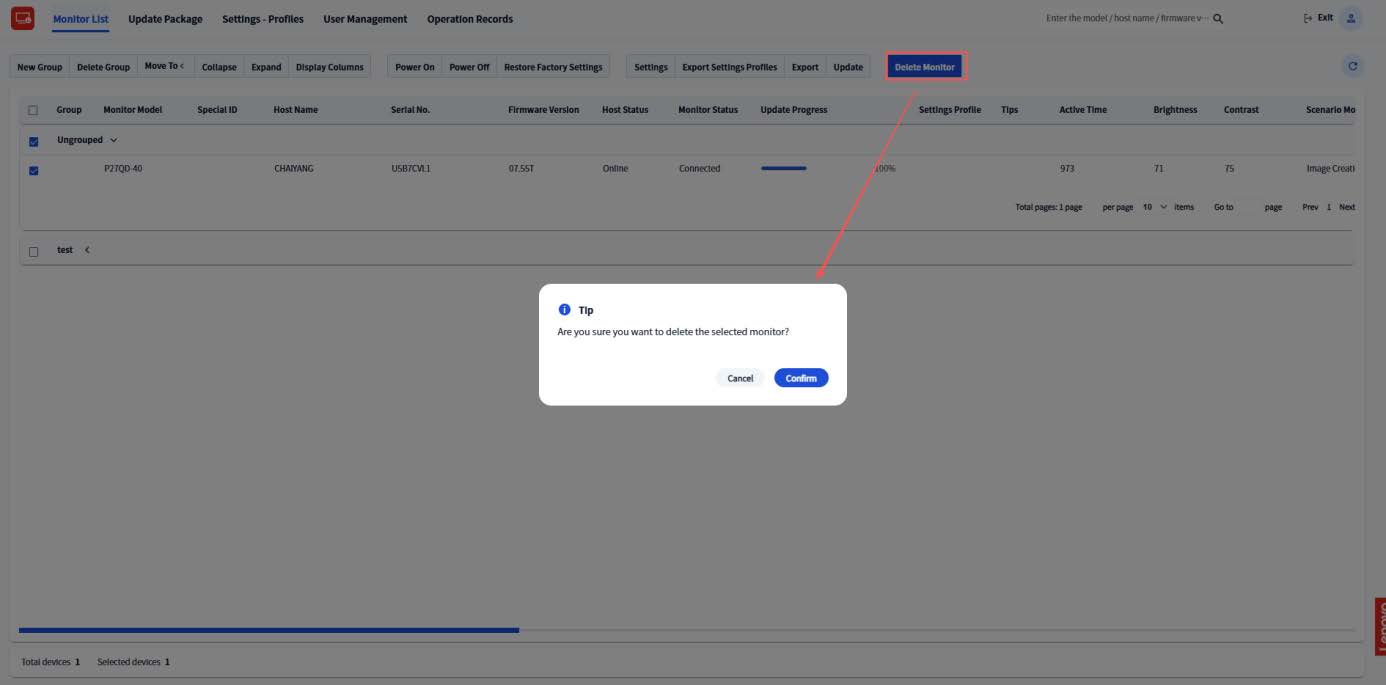
- Select monitors, then click "Delete Monitor" to delete selected monitors.
5. Update Package
- Select a model and click "Upload Update Package" to upload an update package.
- Select the update package on your local computer and click "Open".
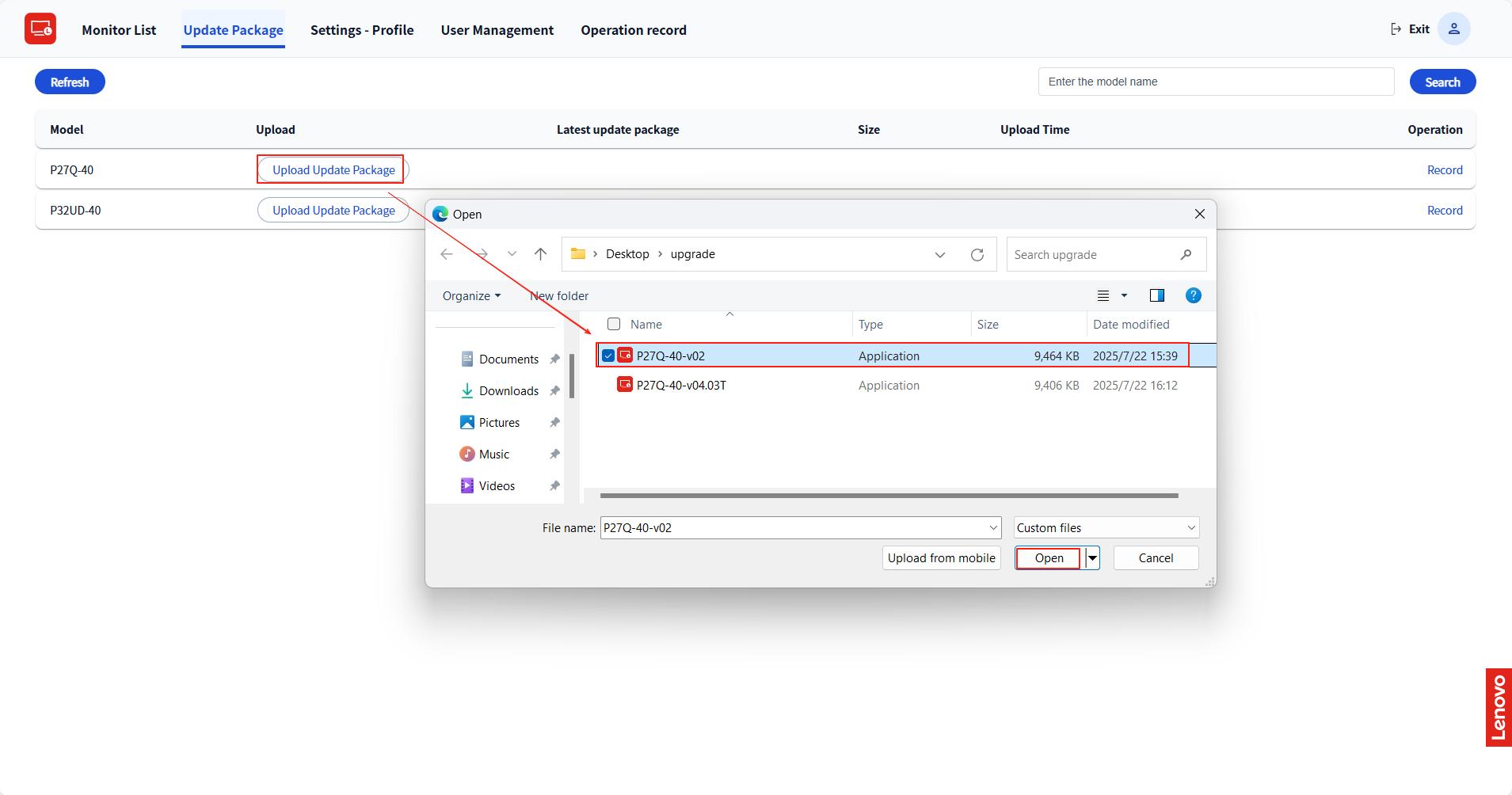
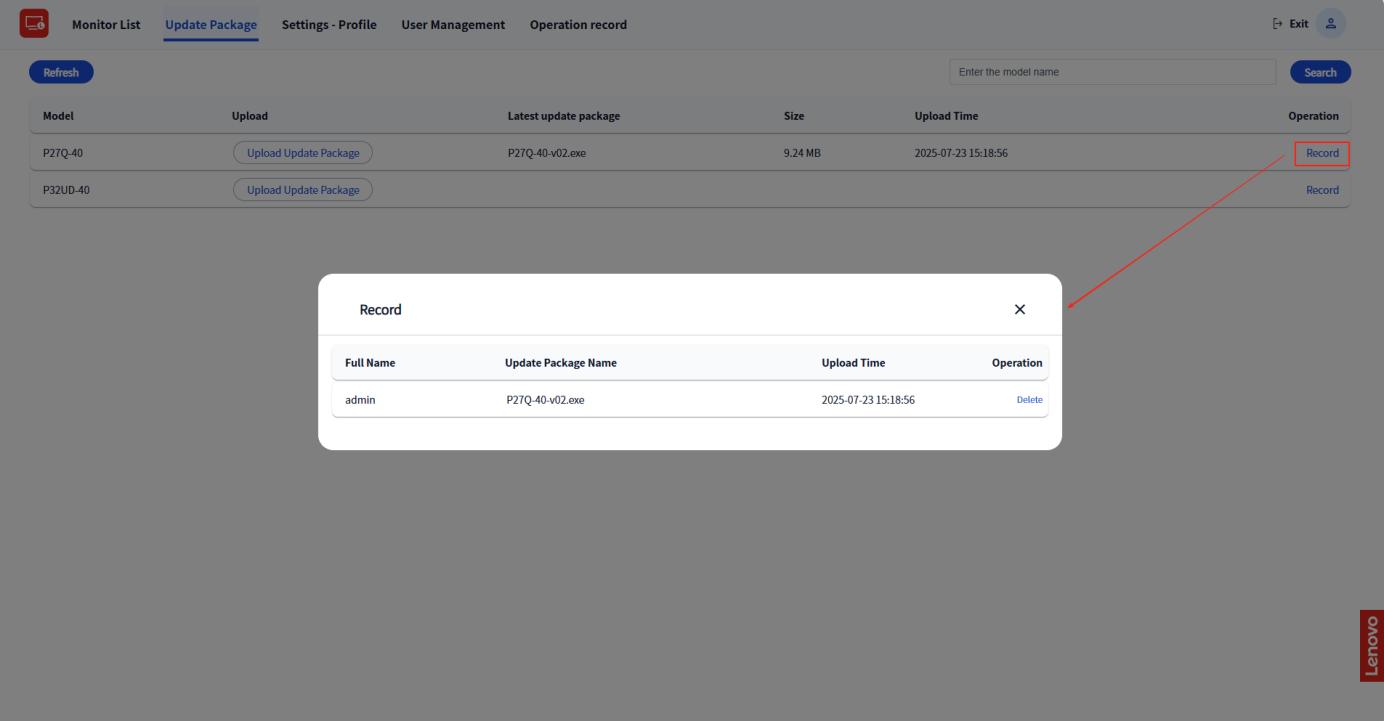
After a successful upload, the name, size, and upload time of the new update package will be recorded.
- Click "Record" to view the upload history for this update package.
6. Settings - Profiles
6.1 Add Profiles
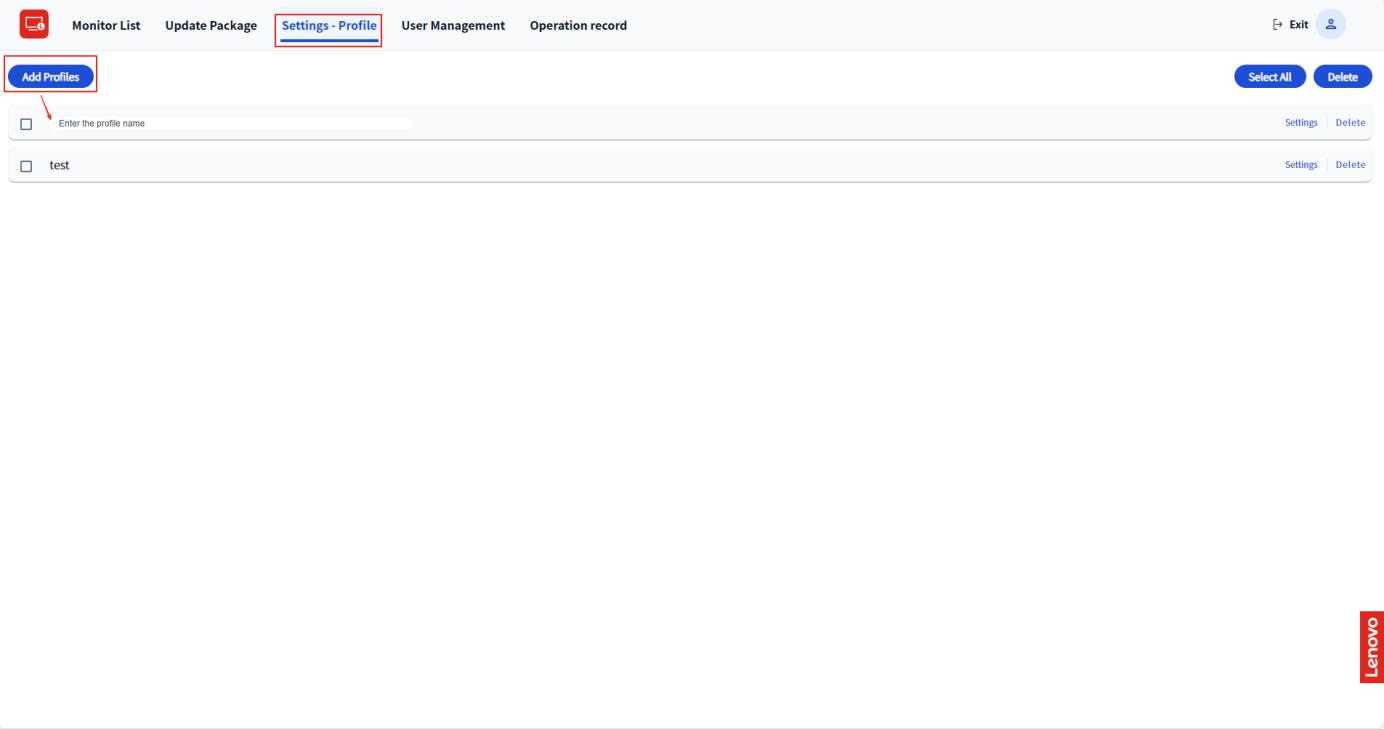
- Click "Settings - Profiles".
- Click "Add Profiles", then enter the setting name.
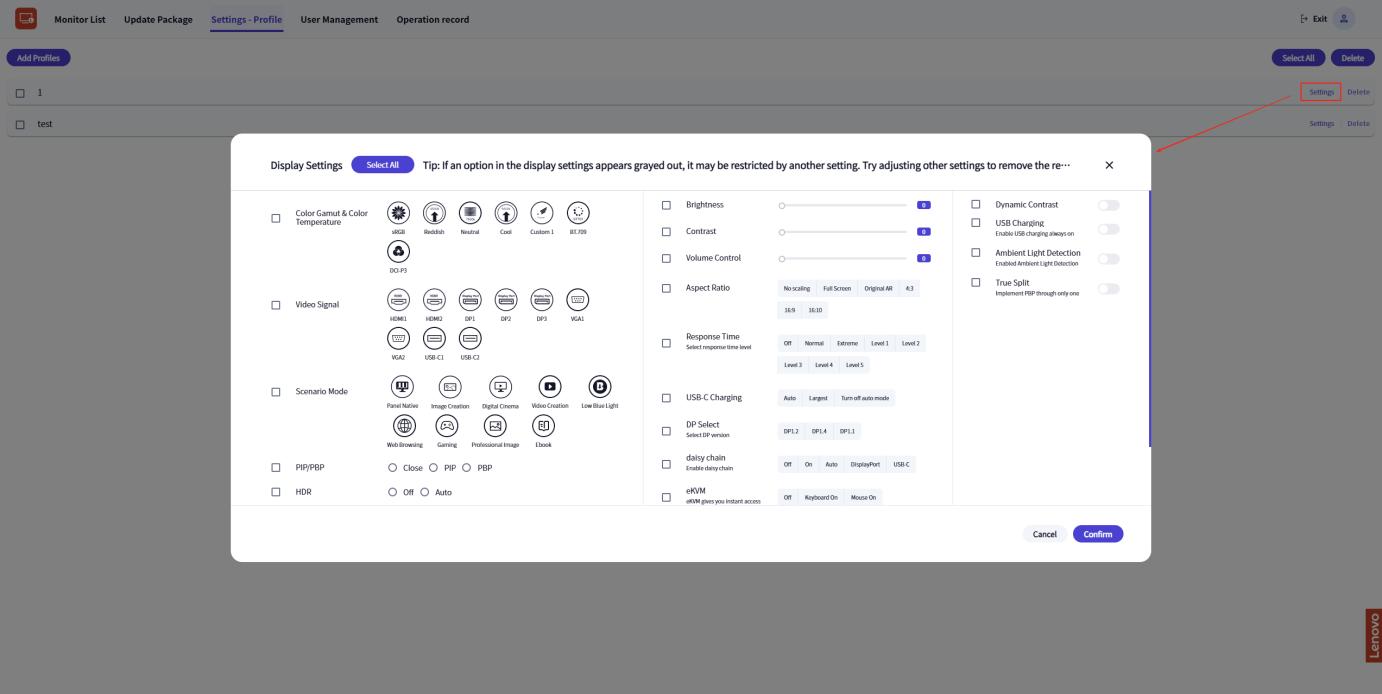
- Click "Settings", then configure the options and click "Confirm".
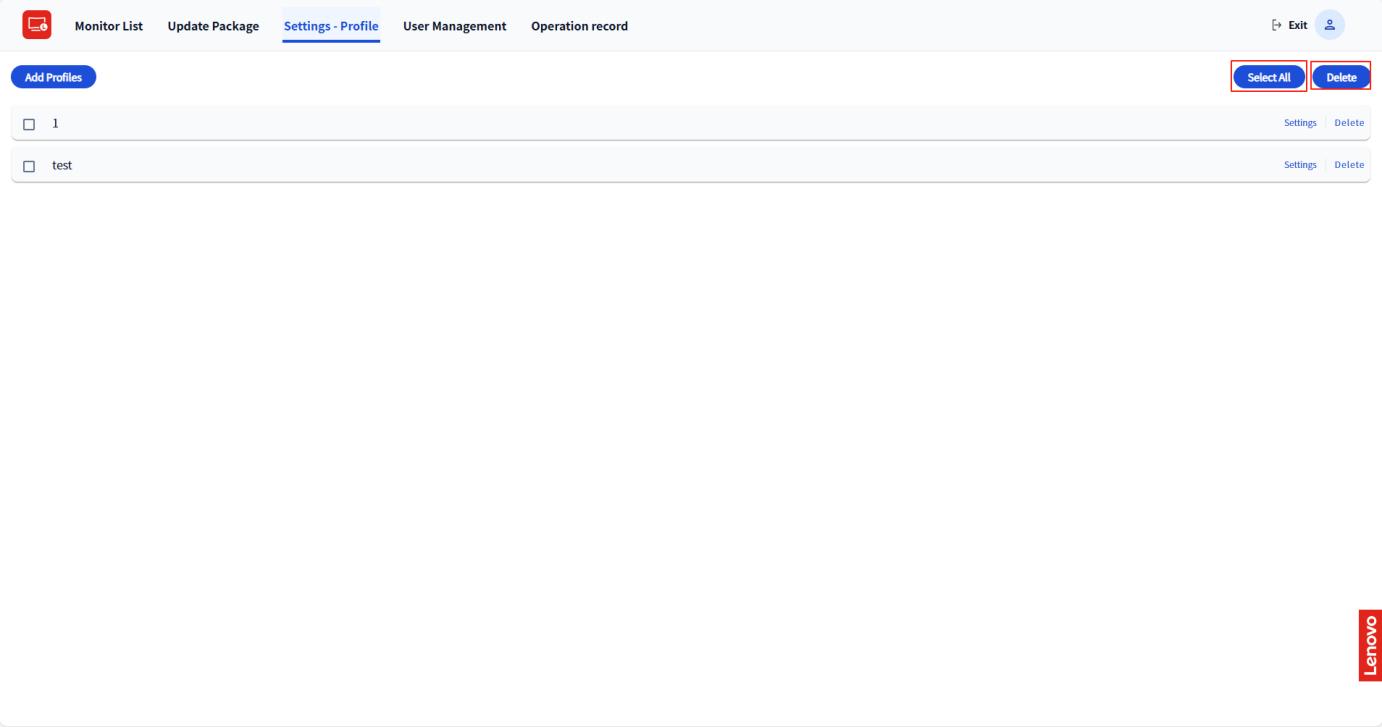
6.2 Delete Settings Profiles
- Select a setting profile or click "Select All", then click "Delete".
7. User Management
The functions in this section are available only to administrators.
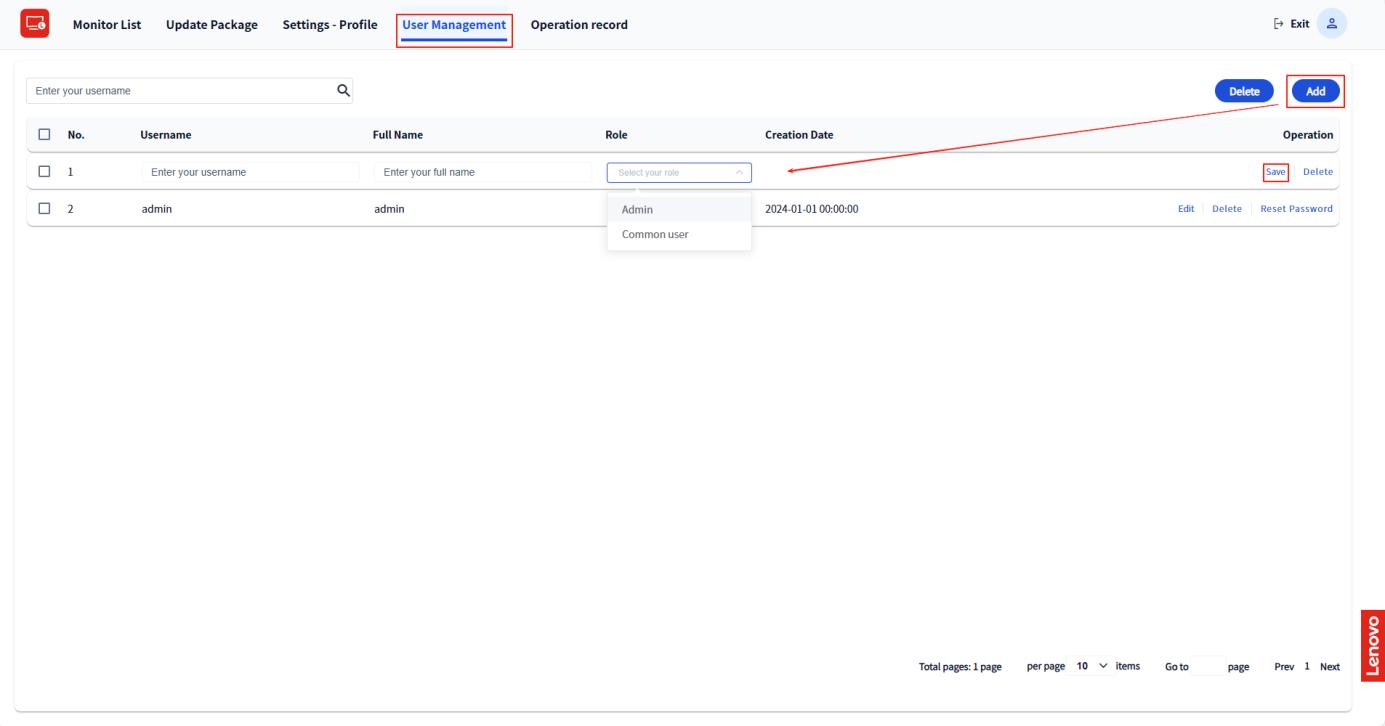
7.1 Add Users
- Click "User Management", then click the "Add".
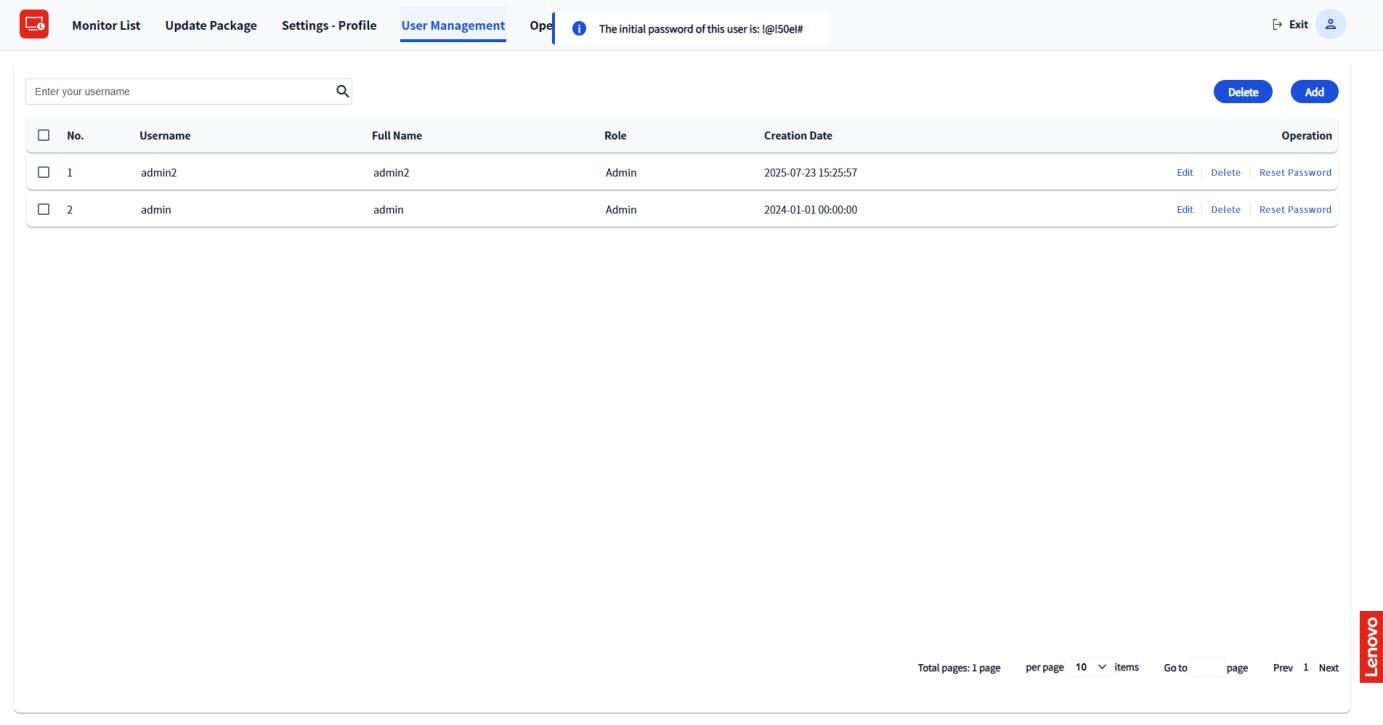
- Add a new user, enter the required information, and then click "Save".
- Copy the generated password and provide it to the new user.
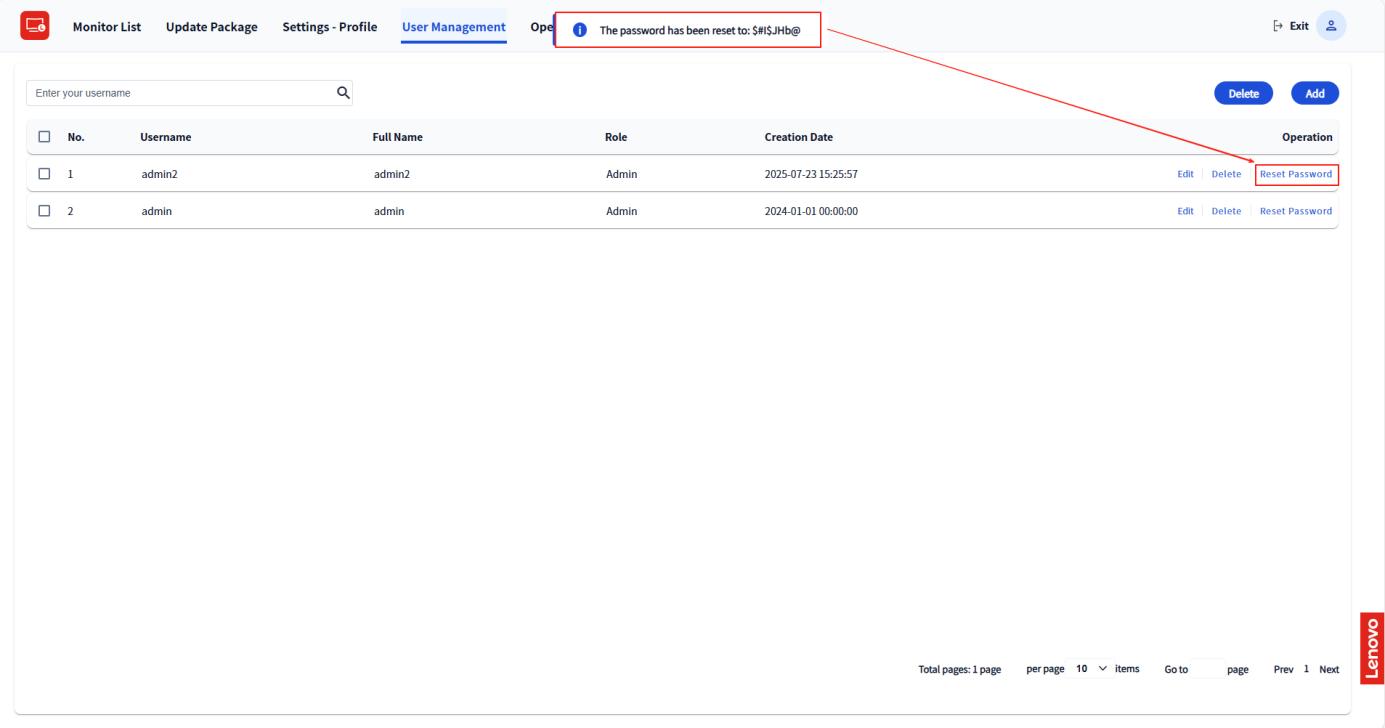
7.2 Reset User Password
- Select the user, then click "Reset Password".
- Copy the generated password and provide it to the user.
8. Operation Records
The functions in this section are available only to administrators.
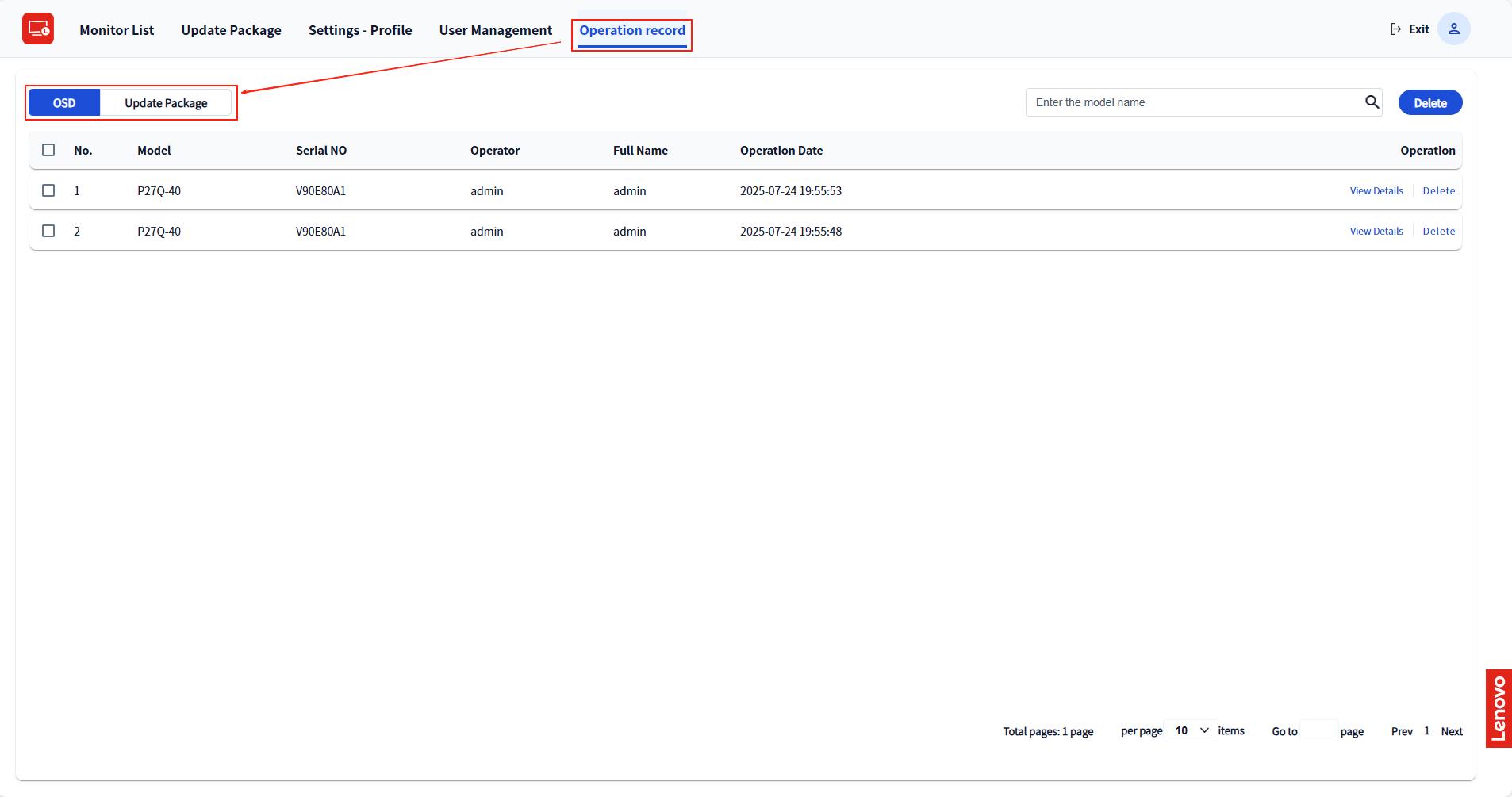
- Click "Operation Records".
- Click the "OSD" or "Installation Package" option to view the corresponding operation records.
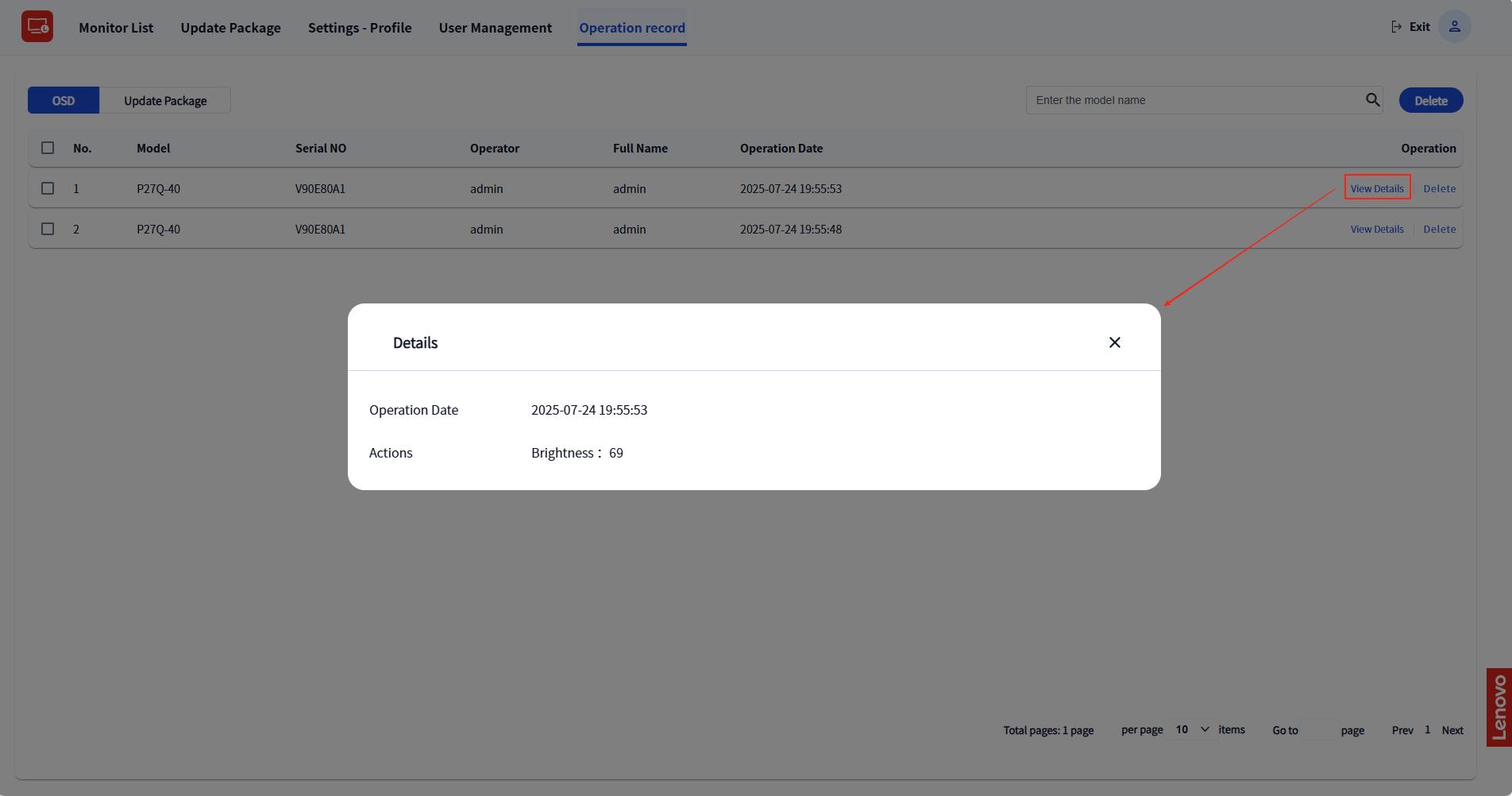
- Click "View Details" to view detailed information.
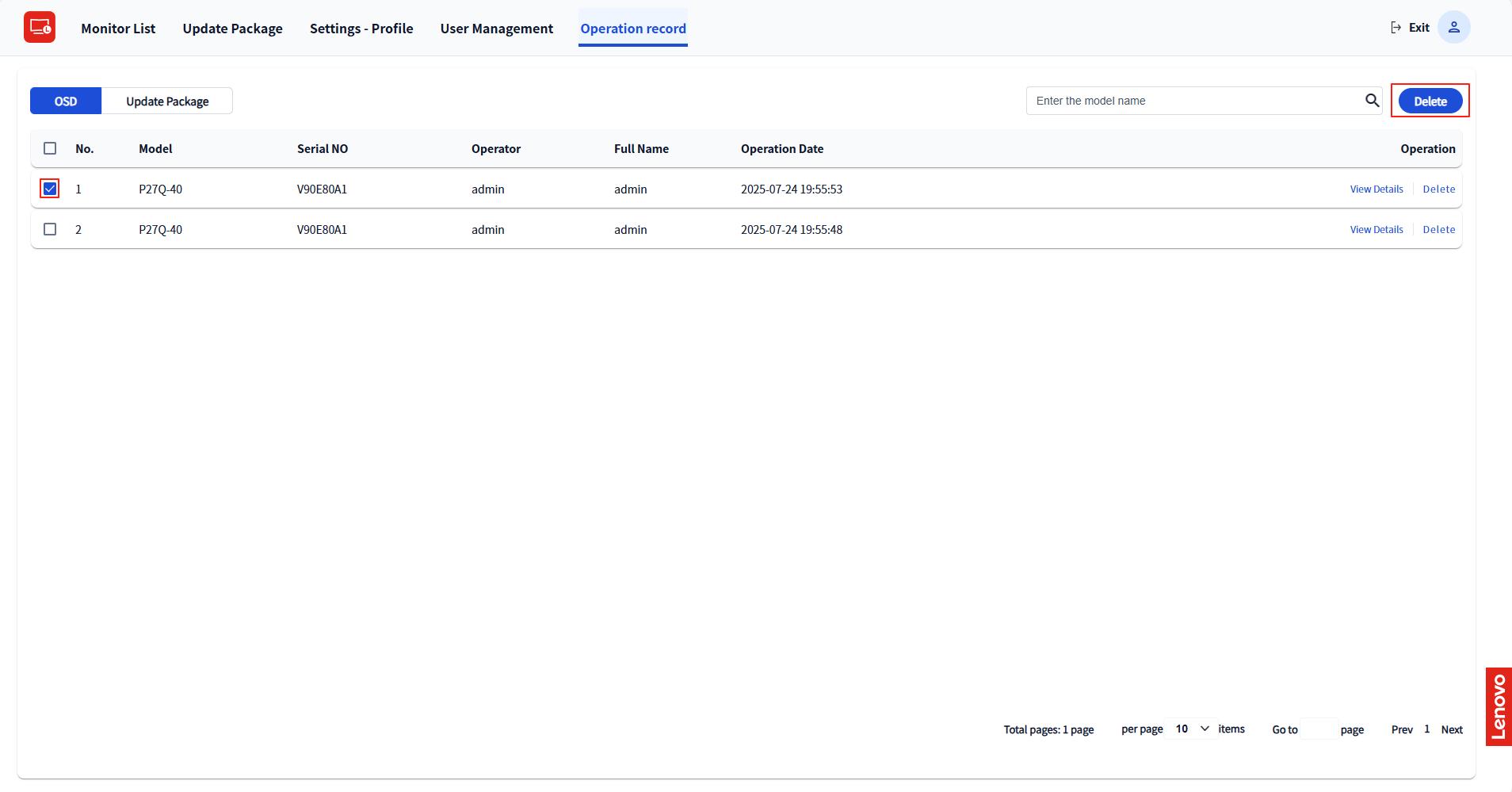
- Select a record and click "Delete" to delete it.
9. Personal Center
9.1 Change Password
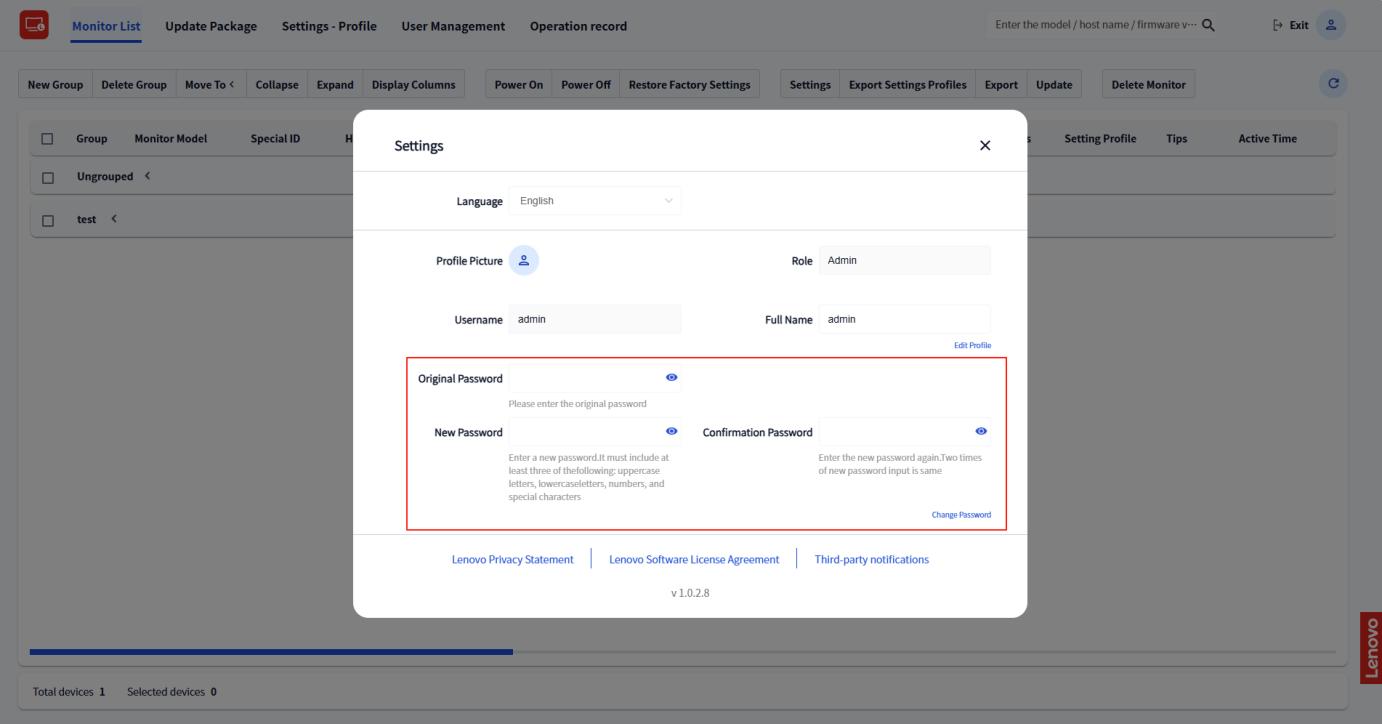
- Click the avatar icon.
- Enter the original password, the new password, and confirm the new password.
- Click "Change Password".
10. Execute the Upgrade Package
Windows upgrade packages are available in two formats: EXE and MSI. The filename formats fall into two categories:
-
Official versions
[model name]-v[version number].exe[model name]-v[version number].msiFor example:
P27QD-40-v03.exe,P27QD-40-v03.msi -
Test versions
[model name]-v[major version number].[minor version number]T.exe[model name]-v[major version number].[minor version number]T.msiFor example:
P27QD-40-v03.05T.exe,P27QD-40-v03.05T.msi
10.1 Manually Execute the EXE Upgrade Package
By default, official versions support only firmware upgrades from lower versions to higher versions. For example, use the following command without any command-line parameters to upgrade the firmware version to version 03:
Command line: P27QD-40-v03.exeIn certain special cases, it may be necessary to downgrade to an older official
version. In such cases, the command-line parameter "-f" can be used to
force the downgrade. For instance, if the firmware version in the monitor is 03 and
you want to downgrade it to 02, use the following command line:
P27QD-40-v02.exe -fHowever, if the upgrade package is a test version, it can be downgraded arbitrarily without the need for command-line parameters. For example, if the firmware version is 03 and you want to downgrade it to 02.01T, use the following command line without parameters:
P27QD-40-v02.01T.exe10.2 Deploy the MSI Upgrade Package via SCCM/Intune
10.2.1 Deploy the MSI Upgrade Package via Intune
In the "Program" tab, use the default configuration.
Installation command line:
msiexec /i "T27QD-40-v11.10T.msi" /qn
Uninstallation command line:
msiexec /i "T27QD-40-v11.10T.msi" /qn
msiexec /x "{6828A268-4F48-4216-A7BF-C06FAFE6B1C1}" /qn
In the "Requirements" tab, enter "Windows 10 1607"
in the minimum operating system version field.
10.2.2 Deploy the MSI Upgrade Package via SCCM
Installation command line:
msiexec /quiet /i "\\SCCM\gx\T27QD-40-v11.10T.msi"
In this command, /quiet enables silent installation, /i
specifies the installation operation, and
\\SCCM\gx\T27QD-40-v11.10T.msi is the network path of the
actual MSI package (please replace it with the real storage path according to
the project).
Uninstallation command line: Automatically generated by SCCM. For example:
msiexec /x "\\SCCM\gx\T27QD-40-v11.10T.msi" /qn /norestart